
UsageLast updated: 29 January 2026
Image Pro provides multiple tag types to handle different image processing scenarios. Each tag type serves a specific purpose, from simple single-tag image generation to advanced bulk processing and palette extraction.
This section covers the fundamental usage patterns for each tag type, including syntax, common examples, and practical implementation guidance.
Image / Single Tag
The primary tag for image processing in Image Pro. The tag methods image, single, and pair are all aliases for the same underlying functionality - Image Pro processes them identically. Choose whichever method name provides the clearest semantic meaning in your templates.
The actual distinction between single tag and pair tag behaviour is determined solely by the presence or absence of a closing tag. A tag without a closing element operates as a single tag (generating a complete <img> tag). A tag with a closing element operates as a pair tag (providing access to template variables).
For example, all of these are valid and functionally identical:
{exp:jcogs_img_pro:image src="..." width="800"}- single tag usingimagemethod{exp:jcogs_img_pro:single src="..." width="800"}- single tag usingsinglemethod{exp:jcogs_img_pro:pair src="..." width="800"}- single tag usingpairmethod
And these are all valid pair tags:
{exp:jcogs_img_pro:image}...{/exp:jcogs_img_pro:image}- pair tag usingimagemethod{exp:jcogs_img_pro:single}...{/exp:jcogs_img_pro:single}- pair tag usingsinglemethod{exp:jcogs_img_pro:pair}...{/exp:jcogs_img_pro:pair}- pair tag usingpairmethod
The single and pair method names exist primarily for legacy compatibility with CE Image, which used these distinct tag names.
Syntax
Single Tag Form:
{exp:jcogs_img_pro:image src="<mark>source_path</mark>" <mark>parameter="value"</mark> ...}
Pair Tag Form:
{exp:jcogs_img_pro:image src="<mark>source_path</mark>" <mark>parameter="value"</mark> ...}
<mark>Template content with variables</mark>
{/exp:jcogs_img_pro:image}
Illustration
{exp:jcogs_img_pro:image width='300' add_dims='y' crop='yes' save_type='webp' aspect_ratio='16_9' class='img_fluid rounded'}
Single Tag Usage
The most common usage generates a complete <img> tag with processed image:
Generates this HTML output:

Variable Modifier
Image Pro can also be used via an ExpressionEngine variable modifier. This approach lets you process an image URL/path contained in a variable and return a processed image URL, without writing an {exp:jcogs_img_pro:image} tag.
This is particularly useful when you already have HTML markup (e.g. an existing <img> tag) and you only want Image Pro to generate the correct cached image URL.
Basic Syntax
Syntax
Preset-based (recommended):
{image_variable:jcogs_img jip_preset="preset_name"}
With parameter overrides:
{image_variable:jcogs_img jip_preset="preset_name" jip_width="800" jip_save_type="webp"}
The modifier name is jcogs_img. To pass Image Pro parameters to the modifier, prefix them with jip_ (or jip:). Image Pro will ignore parameters without this prefix, which helps prevent conflicts when chaining multiple modifiers.
Simple Example
Apply a preset to an image field and output the processed URL directly into an existing <img> tag:
<img src="{product_image:jcogs_img jip_preset='product_thumbnail'}" alt="{title}">
Using Parameters Without a Preset
You can also specify any Image Pro parameters via jip_* prefixes. The modifier returns the processed URL:
<img
    src="{hero_image:jcogs_img jip_width='1200' jip_aspect_ratio='16_9' jip_crop='yes' jip_save_type='webp'}"
    alt="{title}">
File Manager and {filedir_*} Support
Variable modifiers work with the same source formats as tags, including {filedir_1} paths and ExpressionEngine file variables. For example, if you have a file ID you can apply the modifier to the file URL:
<img src="{file:123:url:jcogs_img jip_preset='product_thumbnail'}" alt="Product">
Chaining With Other Modifiers
Image Pro only reads parameters prefixed with jip_ / jip:, which means you can safely chain other modifiers that use their own parameters:
{gallery_image:some_other_modifier:jcogs_img other_param='value' jip_preset='effects'}
In this example, other_param is ignored by Image Pro, while jip_preset is applied.
Usage Notes
When to Use Variable Modifiers
Use variable modifiers when you already have your HTML markup and you only need Image Pro to return the correct processed image URL (for example, inserting a processed URL into an existing src, inline CSS, JSON, or a data attribute).
Use template tags when you want Image Pro to generate complete markup and/or rich output, such as merged HTML attributes, automatic lazy-loading output, srcset/sizes generation, pair-tag variables, or custom HTML via the output parameter.
Usage Notes
- Output is URL-only: the modifier returns a URL/path string, not a full
<img>tag. Use template tags if you want Image Pro to generate complete markup (attributes, lazy-loading output,srcset, etc.). - No
jip_*parameters means no processing: if you call:jcogs_imgwithout any prefixed parameters, it returns the original URL/path. - Safe fallback behaviour: if the source cannot be resolved or parameters fail validation, the original URL/path is returned.
Pair Tag Usage
Image Pro can also be accessed via the tag-pair form where a tag has an opening element (similar to the single-tag form) and also a closing element. Information can be passed to the add-on both from parameters placed within the opening tag and from the information enclosed between the opening and closing tag elements.
As noted in the Image / Single Tag section above, the pair method name is simply an alias for image and single - all three are processed identically by Image Pro. The distinction between single tag and pair tag behaviour is determined by the presence or absence of a closing tag, not by which method name you use.
The pair method name exists solely for CE Image compatibility, where it was a distinct tag. In Image Pro, {exp:jcogs_img_pro:pair} and {exp:jcogs_img_pro:image} are functionally identical.
All functionality, examples, and usage notes for pair tag syntax are covered in the Image / Single Tag section above.
Illustration
{exp:jcogs_img_pro:image width='500px' height='700' rotate='35' max_height='350' crop='yes' save_type='webp' class='gallery-image'}
For example:
Will generate this HTML output:
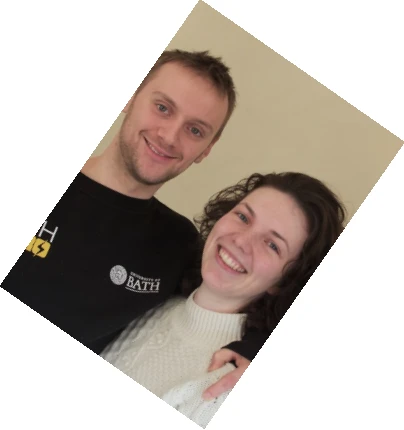
Note: The dimensions reported for the processed image are not those specified in the opening tag - this is because of the rotation and max_height constraint. The width/height reported in the img tag are the dimensions required for the bounding box such that the rotated image can be placed on the page without distortion.
Illustration
URL-Only Output
Use url_only="yes" to return just the processed image URL without generating an <img></strong tag:
Usage Notes
Source Path Formats:
- Server paths:
/images/photo.jpgor/var/www/images/photo.jpg - URLs:
https://example.com/images/photo.jpg(automatically fetched and cached) - EE file manager:
{cf_image_field}or file manager URL - Relative paths: Resolved relative to site document root
Usage Notes
Source Path Formats:
- Server paths:
/images/photo.jpgor/var/www/images/photo.jpg - URLs:
https://example.com/images/photo.jpg(automatically fetched and cached) - EE file manager:
{cf_image_field}or file manager URL - Relative paths: Resolved relative to site document root
Usage Notes
Parameter Precedence:
When the same parameter is defined in multiple locations, Image Pro uses this precedence order:
- Tag parameters (highest priority)
- Config.php overrides
- Control Panel defaults (lowest priority)
Usage Notes
Performance Considerations:
- First request processes and caches the image (may take 50-500ms depending on image size and transformations)
- Subsequent requests serve from cache (typically <5ms)
- Consider using
lazy="lqip"for below-the-fold images to improve initial page load - Presets reduce template complexity and ensure consistent processing
Usage Notes
Automatic Browser Capability Detection:
Image Pro automatically detects browser support for modern formats (WebP, AVIF) and serves appropriate fallbacks. If you specify save_type="avif" but the browser doesn't support AVIF, Image Pro automatically substitutes WebP or JPG as appropriate.
Bulk Tag
The {exp:jcogs_img_pro:bulk} tag processes multiple existing <img> tags within a template block, applying Image Pro processing to each without manually wrapping them in individual tags.
Syntax
    {exp:jcogs_img_pro:bulk parameter="value" ...}
            Template content containing <img> tags
    {/exp:jcogs_img_pro:bulk}
Illustration
Standard Usage
Apply consistent processing to all images in a content block:
{exp:jcogs_img_pro:bulk width="800" save_type="webp" lazy="native"}
    {blog_post_content}
    <!-- Content may contain multiple <img> tags:
         <img src="/uploads/photo1.jpg" alt="...">
         <img src="/uploads/photo2.jpg" alt="...">
         <img src="/uploads/photo3.jpg" alt="...">
    -->
{/exp:jcogs_img_pro:bulk}
Each <img> tag found is processed with the specified parameters, replacing the original src attribute with the processed image URL.
Combining with ExpressionEngine Tags
Bulk tag works seamlessly with EE channel entries and other dynamic content:
{exp:channel:entries channel="articles" limit="10"}
    {exp:jcogs_img_pro:bulk width="400" height="300" lazy="lqip" class="article-image"}
        <article>
            <h2>{title}</h2>
            {article_body}
            <!-- All <img> tags in article_body are processed -->
        </article>
    {/exp:jcogs_img_pro:bulk}
{/exp:channel:entries}
Usage Notes
Performance Impact:
Bulk tag processes each <img> tag individually. If your content block contains many images (10+), first-time processing may be slower. Subsequent requests serve from cache efficiently.
Usage Notes
Existing Attributes Preserved:
Image Pro preserves existing <img> tag attributes (class, alt, title, etc.) while replacing the src attribute with the processed image URL. New attributes from parameters are merged with existing ones.
Usage Notes
SVG and GIF Handling:
By default, SVG files are passed through unchanged unless transformational parameters are specified. Animated GIFs are preserved unless save_type forces conversion to another format.
Usage Notes
When to Use Bulk Tag:
- Processing user-generated content with embedded images
- Migrating from CE Image or other add-ons with minimal template changes
- Applying consistent transformations to legacy content
- Batch processing multiple images with same parameters
Palette Tag
The {exp:jcogs_img_pro:palette} tag extracts colour palette information from images, providing dominant and representative colours for creative design applications.
Syntax
    {exp:jcogs_img_pro:palette src="source_path" palette_size="number"}
            Template content with colour variables
    {/exp:jcogs_img_pro:palette}
Illustration
Standard Usage
{exp:jcogs_img_pro:palette
    src="/images/artwork/{image}"
    palette_size="5"}
    <div class="colour-palette">
        {colours}
            <div class="colour-swatch"
                 style="background-color: #{hex};"
                 title="RGB({red}, {green}, {blue})">
                <span>#{hex}</span>
            </div>
        {/colours}
    </div>
{/exp:jcogs_img_pro:palette}
Available Palette Variables
Within the {colours} loop:
- {hex} - Six-digit hexadecimal colour code (e.g., FF5733)
- {red} - Red channel value (0-255)
- {green} - Green channel value (0-255)
- {blue} - Blue channel value (0-255)
- {count} - Colour loop iteration count (1-based)
Dynamic Styling with Palette Colours
{exp:jcogs_img_pro:palette src="{hero_image}" palette_size="3"}
    <section class="hero"
             style="background: linear-gradient(135deg,
                    {colours}#{hex}{if count != total_results}, {/if}{/colours}
                    );">
        <h1>{title}</h1>
    </section>
{/exp:jcogs_img_pro:palette}
Output Example:
<section class="hero"
         style="background: linear-gradient(135deg,
                #FF5733, #33FF57, #3357FF);">
    <h1>Title</h1>
</section>
Colour Matching and Theming
{exp:jcogs_img_pro:palette src="{product_image}" palette_size="1"}
    {colours}
        <style>
            .product-card {
                border-color: #{hex};
            }
            .product-card:hover {
                background-color: rgba({red}, {green}, {blue}, 0.1);
            }
        </style>
    {/colours}
{/exp:jcogs_img_pro:palette}
Usage Notes
Palette Size:
Use the palette_size parameter (default: 5) to control how many dominant colours are extracted. Smaller palettes (1-3) provide major colours; larger palettes (5-10) capture more subtle variations. Very large palettes (10+) may include near-duplicates.
Usage Notes
Performance Considerations:
Colour extraction is computationally intensive. Results are cached like processed images, so first request processes the palette whilst subsequent requests serve from cache. Consider extracting palettes during content entry and storing results rather than on every page load.
Usage Notes
Colour Ordering:
Colours are ordered by dominance/frequency in the image. The first colour in the palette is typically the most prevalent, useful for accent colours or theming.
Usage Notes
Image Processing vs. Palette Extraction:
The palette tag does not generate processed images - it only extracts colour data. If you need both a processed image and its palette, use separate image and palette tags with the same source.
Usage Notes
Creative Applications:
- Dynamic CSS generation based on image colours
- Complementary colour selection for UI elements
- Brand colour extraction from logos
- Artwork categorisation by colour dominance
- Product colour matching and filtering
Size Tag
The {exp:jcogs_img_pro:size} tag retrieves dimension information about source images without processing them. Useful for planning layouts, validating image requirements, or displaying metadata.
Syntax
{exp:jcogs_img_pro:size src="source_path"}
    Template content with dimension variables
{/exp:jcogs_img_pro:size}
Illustration
Standard Usage
{exp:jcogs_img_pro:size src="/images/uploads/{photo}"}
    <div class="image-info">
        <p>Dimensions: {img_width} × {img_height} pixels</p>
        <p>Aspect Ratio: {img_aspect_ratio}</p>
        <p>File Size: {img_filesize}</p>
        <p>Format: {img_ext}</p>
    </div>
{/exp:jcogs_img_pro:size}
Available Variables
- {img_width} - Image width in pixels
- {img_height} - Image height in pixels
- {img_aspect_ratio} - Calculated aspect ratio (e.g., 1.777 for 16:9)
- {img_filesize} - Human-readable file size (e.g., 2.4 MB)
- {img_ext} - File extension (e.g., jpg, png)
- {img_path} - Full server path to source image
- {img_url} - URL to source image
- {img_mime_type} - MIME type (e.g., image/jpeg)
Validation and Conditional Display
{exp:jcogs_img_pro:size src="{uploaded_image}"}
    {if img_width >= 1920 AND img_height >= 1080}
        <span class="badge badge-success">HD Quality</span>
    {if:elseif img_width >= 1280 AND img_height >= 720}
        <span class="badge badge-warning">Standard Quality</span>
    {if:else}
        <span class="badge badge-danger">Low Quality</span>
    {/if}
    {if img_aspect_ratio > 1.5 AND img_aspect_ratio < 1.9}
        <p>Suitable for widescreen display</p>
    {/if}
{/exp:jcogs_img_pro:size}
Layout Planning
{exp:jcogs_img_pro:size src="{gallery_image}"}
    <div class="image-container"
         style="padding-bottom: {img_height / img_width * 100}%;">
        <!-- Responsive aspect ratio container -->
        <img src="{img_url}" alt="{title}">
    </div>
{/exp:jcogs_img_pro:size}
Usage Notes
No Image Processing:
The size tag reads source image metadata only - it does not create processed versions or cache files. This makes it extremely fast and lightweight, ideal for metadata display without processing overhead.
Usage Notes
Remote Images:
Size tag works with remote URLs but requires fetching the image to read dimensions. For remote images accessed repeatedly, consider caching the dimension data in channel fields rather than querying on each page load.
Usage Notes
Error Handling:
If the source image cannot be found or read, variables return empty values. Use conditionals to handle missing images gracefully:
{exp:jcogs_img_pro:size src="{photo}"}
    {if img_width}
        <p>Dimensions: {img_width}×{img_height}</p>
    {if:else}
        <p>Image dimensions unavailable</p>
    {/if}
{/exp:jcogs_img_pro:size}
Action Links
JCOGS Image Pro's Action Link system allows you to add images processed by JCOGS Image Pro to any web page whether or not it is part of an ExpressionEngine template.
There are a variety of uses for Action Links, but the foremost is as a way to offer a more flexible way of integrating images with ExpressonEngine sites that use template caching. Although there are a variety of approaches used, the aim of template caching is to make it possible to send the content of an ExpressionEngine web page to a user without having to process the template that is used to generate the content; doing this speeds up retrieval of the information. When a template is cached usually the links to images within the template are saved as “hard coded” urls - when the cached template is sent to a browser there is no opportunity to check that these images are available (or indeed, modify them to suit changing circumstances).
If you get JCOGS Image Pro to save the link to the processed image as an Action Link, it is the Action Link that is ‘hard coded’ into the cached content - and when the cached template is then sent to the browser, it is the Action Link that it tries to open. The Action Link triggers JCOGS Image Pro which checks to see if the requested processed image is in the cache, the cached image is returned; if the image is missing, the Action Link contains enough information to allow JCOGS Image Pro to regenerate the required image (and save it to the cache so future attempts to retrieve the same automatic action link image will be cache-fast).
Using JCOGS Image Pro automatic Action Links in this way makes it possible for you to worry less about ensuring that your image cache and template cache are both ‘in sync’ - when you are using automatic Action Links, clearing the image cache does not also require you to also clear all / any templates that have been cached. But there are also other uses for Action Links - particularly the “manual” version.
Generating an Image via a manual Action Link
JCOGS Image Pro's Action Link system let's you process ‘single’ JCOGS Image Pro tags via an ExpressionEngine ACT link. This feature allows you to add images processed by JCOGS Image Pro to any web page whether or not it is part of an ExpressionEngine template. To do this you need to find the correct action link code for your server, and then append the JCOGS Image Pro parameters that define the image you want to generate to the URL as “GET” variables.
For example, imagine you have a JCOGS Image Pro tag in your template that looks like this:
{exp:jcogs_img_pro:image src="/images/of/cats/small.webp" width="350px" aspect_ratio="1_1" crop="yes"}.
If the action link URL for a server is https://domain.com/?ACT=44 then you could replicate the output of this tag using the following URL:
https://domain.com/?ACT=44&src=/images/of/cats/small.webp&width=350px&aspect_ratio=1_1&crop=yes
When this URL is evaluated (e.g. by pasting into a browser url bar) it contacts JCOGS Image Pro on your server which then looks to see the processed image for this set of parameters is already in the cache, and if not it processes the options just like it would in a template, and then either way returns the processed image. If action links like this are placed in the src attribute of HTML <img> tags, the image returned is treated as the tag “source” and will appear within your HTML template just like any other image referenced by a regular URL.
Automatic Action Links
JCOGS Image Pro can also generate Action Link URLs automatically (the Action Link appears in place of the URL to the processed image that is normally appears in JCOGS Image Pro tag output). You can activate automatic Action Link generation either by setting a default option on the JCOGS Image Pro System Settings panel or by by adding the parameter action_link='yes' to a JCOGS Image Pro tag.
When you enable automatic Action Links, a specially formatted Action Link will be generated that can be used as in the src= attribute of an HTML <img> tag; when this special Action Link is evaluated by an HTML tag it makes a call to your ExpressionEngine server looking for the processed image created by JCOGS Image Pro when the action link was generated.
- If the processed image is found in the image cache, ExpressionEngine returns it immediately and the image is displayed in your page.
- If the processed image is not found in the image cache, JCOGS Image Pro will regenerate the image (and save it in the cache for next time) and return the image. JCOGS Image Pro can do this regeneration without having to make any calls to the wider ExpressionEngine environment (as all the information JCOGS Image Pro needs to reprocess the image is stored in the automatic Action Link) which makes regeneration speedy.
Usage Notes
Security Considerations:
Action link tokens are generated from your Image Pro licence key and site configuration. Treat these URLs as sensitive - they provide programmatic cache control. Do not expose action link URLs in public repositories or client-side code.
Usage Notes
Token Regeneration:
If action link tokens are compromised, update your Image Pro licence key in the Control Panel to invalidate existing tokens and generate new ones.
CE Image compatibility
Image Pro provides backward compatibility with CE Image syntax to ease migration. Most CE Image parameters are supported with equivalent functionality, though some advanced Pro features extend beyond CE Image capabilities.
Tag Syntax Compatibility
CE Image tags can be replaced with Image Pro equivalents:
| CE Image Syntax | Image Pro Equivalent |
|---|---|
{exp:ce_img:single src="..."}
|
{exp:jcogs_img_pro:image src="..."}
|
{exp:ce_img:pair src="..."}
|
{exp:jcogs_img_pro:pair src="..."}
|
{exp:ce_img:bulk}
|
{exp:jcogs_img_pro:bulk}
|
Parameter Compatibility
Most CE Image parameters are directly supported. See the Parameters section for detailed compatibility status for each parameter. Common parameters with full compatibility:
- width, height, max_width, max_height
- crop, rotate, scale
- quality, save_type
- border, rounded_corners
- filter (subset of CE Image filters)
- cache, cache_dir
Migration Strategy
Step 1: Find and Replace Tags
Use your code editor or ExpressionEngine's Find & Replace to update tag prefixes:
Find:    {exp:ce_img:
Replace: {exp:jcogs_img_pro:
Step 2: Review Advanced Parameters
Check templates for CE Image parameters that may need adaptation:
- Custom filter implementations may require rewriting using Image Pro's filter system
- CE Image's
madeparameter structure differs - review output variable usage in pair tags - Remote image caching defaults may differ - verify remote URL handling
Step 3: Test Output
Compare CE Image and Image Pro outputs for representative templates:
- Verify processed image dimensions match expectations
- Check cache directory structure (configure
cache_dirif needed) - Validate lazy loading implementation if using Pro's enhanced lazy loading
- Test pair tag variable availability and names
Step 4: Leverage Pro Features
After basic migration, enhance templates with Pro-exclusive features:
- Named connections for cloud storage
- Preset system for consistent processing
- Enhanced lazy loading (LQIP, colour placeholders)
- Advanced format support (AVIF) with automatic browser detection
- Face detection for intelligent cropping
CE Image Remote Image Cache Directory
CE Image caches copies of remote images it has retrieved in a custom directory location: if
JCOGS Image cannot retrieve a remote image from a remote source, it will also look for it in the default CE
Image remote image cache location (if present) - while not a complete solution
to missing remote images, this facility can help with site updates /
migrations.
The default value is the default used by CE Image - i.e. images/remote.
If your site has the remote cache location stored in a different location (the path needs to be one that is within your site's webroot) you can enter the custom location in the Advanced Setting "CE Image Remote Image Cache Directory" - this should be a path entered relative to your webroot.
To minimise potential problems with JCOGS Image (and other add-ons) please also ensure that your EE 'default base path' is set correctly.
Usage Notes
Parameter Coverage:
Image Pro supports almost all CE Image parameters. The Parameters section documents compatibility status for each parameter. Where a CE Image parameter is not supported, it will relate to a function that has no equivalent role within JCOGS Image Pro due to differences in how the two add-ons work internally. If a CE Image parameter that is not supported is found within a migrated tag, JCOGS Image Pro will ignore it, and pass the text through to the output where approprate.
Usage Notes
Performance Differences:
Image Pro's caching and processing pipeline differs from CE Image. Expect different (typically faster) processing times and cache structures. First-time processing may produce different cache filenames than CE Image - this is normal and does not affect functionality.
Usage Notes
Variable Name Differences:
Some pair tag variable names differ between CE Image and Image Pro. Review the Variables section for Image Pro's variable naming conventions and use find-and-replace if needed.
Usage Notes
Side-by-Side Operation:
CE Image and Image Pro can coexist during migration. Each maintains separate cache directories, so you can gradually migrate templates whilst ensuring no disruption. Configure cache directories appropriately to avoid conflicts.
Usage Notes
Support Timeline:
CE Image compatibility is provided to ease migration. New Pro features may not maintain CE Image compatibility. Plan to migrate fully to Image Pro syntax and parameters for access to all Pro capabilities.
CE Image Parameter Compatibility Table
| Parameter | CE Image Compatibility | Notes |
|---|---|---|
| add_dimensions | New feature | |
| add_dims | Full | |
| allow_scale_larger | Full | |
| ascii_art | Not implemented | Unlikely to be replicated. |
| aspect_ratio | New feature | |
| attributes | Full | |
| auto_cache | N/A | File caching is handled differently by JCOGS Image - see separate notes |
| auto_sharpen | New feature | |
| aws_auto_url | Not implemented | Could be implemented in a future version if demand for this exists |
| bg_color | Full | |
| bg_color_default | Not implemented | Currently available via Control Panel option. Could be replicated as a parameter if demand for this exists. |
| border | Full | Added in version 1.1 |
| bucket | Not implemented | File caching is handled differently by JCOGS Image - see separate notes |
| cache | New feature | This parameter allows the cache setting for an image to be set at the tag level. |
| cache_dir | Full | |
| consolidate_class_style | New feature | |
| create_tag | Full | |
| crop | Full | JCOGS Image's implementation of crop includes additional features not present in the CE Image crop parameter. |
| default_img_width | New feature | |
| disable_browser_checks | New feature | |
| disable_xss_check | Not implemented | XSS checks on paths provided are not optional. |
| encode_urls | N/A | JCOGS Image uses a different approach to file names and so this is not needed |
| exclude_class | New feature | |
| exclude_regex | Full | CE Image's version of this tag only searches within the src= attribute of the |
| exclude_style | New feature | |
| face_crop_margin | New feature | |
| face_detect_sensitivity | New feature | |
| fallback_src | Full | |
| filename | Full | |
| filename_prefix | Full | |
| filename_suffix | Full | |
| filter | Full | Not all the filter options available in CE Image are currently implemented, see separate notes on this in the Filters section of this document. |
| fit | New feature | |
| flip | Full | |
| force_remote | N/A | This behaviour is handled automatically, there is no equivalent operation |
| hash_filename | Full | |
| height | Full | |
| hide_relative_path | N/A | JCOGS Image uses a different approach to file names and paths and so this is not needed |
| image_path_prefix | New feature | |
| interlace | Full | |
| lazy | New feature | Implements automatic lazy-loading for |
| lazy | New feature | Implements automatic lazy-loading for |
| manipulate | Not implemented | Could be replicated if demand for this exists |
| max | Full | |
| max_height | Full | |
| max_width | Full | |
| min | Full | |
| min_height | Full | |
| min_width | Full | |
| output | Full | |
| overwrite_cache | Full | |
| palette_size | Partial | Related tag is broadly similar in function to the CE-Image ‘top_colors’ parameter. |
| png_quality | New feature | |
| preload | New feature | Implements automatic image preloading for |
| quality | Full | |
| reflection | Full | |
| remote_cache_time | N/A | File caching is handled differently by JCOGS Image - see separate notes |
| remote_dir | N/A | File caching is handled differently by JCOGS Image - see separate notes |
| rotate | Full | |
| rounded_corners | Partial | Added in version 1.3. Separately specified colour backgrounds for each corner for non-transparent image formats not supported. |
| save_type | Full | |
| sizes | New feature | |
| src | Full | |
| srcset | New feature | Automatically add responsive variants of the processed image to an <img> tag via the srcset= and sizes= parameters |
| svg_passthrough | New feature | |
| text | Full | Added in version 1.1 |
| top_colors | Partial | A broadly similar output is provided by JCOGS Image's palette method. |
| unique | N/A | File caching is handled differently by JCOGS Image - see separate notes |
| url_only | Full | |
| use_image_path_prefix | New feature | |
| watermark | Full | Added in version 1.1 |
| width | Full |
CE Image Filter Compatibility Table
| Filter | CE Image Compatibility | Notes |
|---|---|---|
| auto_sharpen | Full | |
| blur | New feature | |
| brightness | Full | |
| colorize | Full | |
| contrast | Full | |
| dominant_color | New feature | |
| dot | Full | |
| edgedetect | Full | |
| emboss | Full | |
| face_detect | New feature | |
| gaussian_blur | Partial | |
| grayscale | Full | |
| greyscale | New feature | |
| invert | New feature | |
| lqip | New feature | |
| mask | New feature | |
| mean_removal | Full | |
| negate | Full | |
| noise | Full | |
| opacity | Full | |
| pixelate | Full | |
| replace_colors | Partial | The filter is broadly equivalent in function to the replace_colors filter found in CE Image, but has slightly different parameters intended to simplify operations. |
| scatter | Full | |
| selective_blur | Full | |
| sepia | Full | The 'slow' version of the sepia filter is fully equivalent to the filter provided with CE Image, but takes about 5x longer to process an image than the 'fast' version (the default). |
| sharpen | Full | |
| smooth | Full | |
| sobel_edgify | Partial | Due to differences in the algorithm used to calculate the filtered image only the threshold sub-parameter is replicated: other sub-parameters will be ignored. |
CE Image Variable Compatibility Table
| Variable | CE Image Compatibility | Notes |
|---|---|---|
| aspect_ratio | New feature | Added in version 1.1 |
| aspect_ratio_orig | New feature | Added in version 1.1 |
| attributes | Full | |
| average_color | Full | Added in version 1.3 |
| base_64_orig | Full | |
| base64 | Full | |
| dominant_color | New feature | Added in version 1.2 |
| extension | Full | |
| extension_orig | Full | |
| filesize | Full | |
| filesize_bytes | Full | |
| filesize_bytes_orig | Full | |
| filesize_orig | Full | |
| height | Full | |
| height_orig | Full | |
| img_credit | New feature | Added in version 1.3 |
| img_description | New feature | Added in version 1.3 |
| img_location | New feature | Added in version 1.3 |
| img_title | New feature | Added in version 1.3.10 |
| lazy_image | New feature | Added in version 1.3 |
| lqip | New feature | Added in version 1.2 |
| made | Full | |
| made_url | Full | |
| made_with_prefix | New feature | |
| mime_type | New feature | |
| name | Full | |
| name_orig | Full | |
| orig | Full | |
| orig_url | Full | |
| path | Full | |
| path_orig | Full | |
| preload | New feature | Added in version 1.4.7 |
| sizes_param | New feature | Added in version 1.3 |
| srcset_param | New feature | Added in version 1.3 |
| type | Full | |
| type_orig | Full | |
| width | Full | |
| width_orig | Full |