
ParametersLast updated: 5 August 2026
JCOGS Image Pro parameters fall into three groups: Control, Dimensional, and Transformational. Add parameters to Image Pro tags to control how images are selected, processed, and output.
The same parameter and variable system is used across all Image Pro tag types, including image, single, pair, and bulk tags.
- Control parameters control output behaviour, caching, file handling, and generated HTML attributes. They do not change the visual content of the processed image itself.
- Dimensional parameters control target size and constraints, including width, height, minimums, and maximums. They work with Image Pro scaling rules to determine final output dimensions.
- Transformational parameters change the processed image itself, for example by cropping, filtering, watermarking, setting quality, or applying colour profile options.
Some parameters are intentionally compatible with CE Image syntax to make migration easier. Where behaviour differs, this is noted in the individual parameter documentation.
Passthrough parameters and parameter consolidation
If a tag includes attributes that are not recognised as Image Pro parameters, Image Pro passes them through to the generated <img> tag. This lets you add attributes such as alt, title, class, id, or data-* directly in the tag.
If class or style appears more than once, Image Pro can consolidate them into a single output attribute. More on this feature here.
Parameter Categories
Control Parameters
Parameters that control output format, caching, file handling, and tag generation behaviour. These do not modify image content.
Dimensional Parameters
Parameters that control image dimensions and sizing constraints.
Transformational Parameters
Parameters that modify image content through resizing, cropping, filtering, effects, quality settings, and visual enhancements.
add_dims
CE Image Compatibility: Full
Determines whether HTML img dimension parameters width= and height= will be included within <img> tag. The parameter is ignored where the tag does not output an <img> tag.
Syntax + Examples
add_dims="yes|no" - default value: yes for single tags, no for tag-pairs.
add_dims="yes"
Illustration
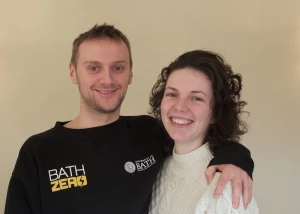
{exp:jcogs_img:image add_dims="yes" width="300"}
This single JCOGS Image tag will produce an HTML img tag containing width= and height= parameters.
Usage Notes
If you also choose options that will cause the JCOGS Image Pro to generate an HTML <img> tag, this parameter will determine whether the HTML img dimension parameters (width= and height=) will be included in the tag.
add_dimensions
CE Image Compatibility: New feature
An alias for the add_dims parameter. See the definition of add_dims for parameters.
Usage Notes
If both add_dims and add_dimensions parameters are specified in the same tag, the value of add_dims will be used.
allow_scale_larger
CE Image Compatibility: Full
This parameter controls whether JCOGS Image Pro is allowed to increase the size of the image to fit within the dimensions specified for the final image.
Syntax + Examples
allow_scale_larger="yes|no" - default value: no
allow_scale_larger="yes"
Usage Notes
Only applies to resize operations. Ignored otherwise.
If the parameter is set to no and other operations specified can be completed without enlarging the image then this parameter will have no effect.
If the parameter is set to no and any of the other operations specified would require the size of the image to be increased for the operation to complete, these other operations are not applied.
The default value for this parameter is no, but this can be adjusted to default to yes via a control panel setting.
aspect_ratio
CE Image Compatibility: New feature
Adds a constraint to some operations to use the specified aspect ratio to constrain the dimensions of the final image.
The aspect ratio is defined as the ratio between the horizontal and vertical dimensions, and is submitted to the addon in the form of two values separated by a spacing character - for example 16_9. The first integer value relates to the horizontal dimension, and the second to the vertical dimension. Any two values can be used.
If the value given does not conform to the required format, the aspect ratio parameter is ignored.
If both width and height are specified in the tag then this parameter is ignored.
Most often the parameter is used with the crop operation, but also can be used when resizing images and the fit parameter is specified.
For cropping operations, aspect ratio is used to calculate the required image height if only width is specified, or the required image width if only height is specified. If neither width nor height are specified, the required height is calculated based on the width of the source image.
For resizing operations where only one dimension is specified (height or width) the aspect ratio is used to impute the other dimension of the ‘bounding box’ for the resized image so that the fit parameter can determine the appropriate height and width for the image after the resize.
Syntax + Examples
aspect_ratio="<integer>[_|px|%]<integer>" - default value: if the value provided is not a valid aspect ratio, the original aspect ratio is maintained.
aspect_ratio="16_9"
aspect_ratio="5/7"
aspect_ratio="4:3"
Illustration
{exp:jcogs_img:image width='300' aspect_ratio='16_9' crop='y'}
In this example the image will be scaled to be 300 px wide, and the height is set according to the aspect ratio specified.

Usage Notes
If both height and width are specified in the tag then this parameter is ignored.
attributes
CE Image Compatibility: Full
Any content within an attributes= tag is passed through to the tag output unchanged.
If creation of an <img> tag is requested this content is simply placed within the tag along with any calculated values (e.g. width).
The content is also available via the {attributes} variable which can be used in a single JCOGS Image Pro tag within the output= parameter, or when using a tag-pair.
Note: The parameter is included primarily for compatibilty reasons with CE Image - JCOGS Image's “pass-through” behaviour means that any parameters that are found within the Image tag and are not recognised as “Image” tags are automatically passed through to the output: the only time attributes= is useful is when you specifically want to pass through a parameter that would otherwise be interpreted / acted upon by Image.
Syntax + Examples
attributes="<any content>" - default value: null
attributes="class='cats' style='margin:3em' data-toggle='up'"
Illustration
{exp:jcogs_img:image width='300' attributes="class='cats'" class="dogs"}
This example adds the content class='cats dogs' to the HTML <img> tag created by combining the class value specified in the attributes= parameter with the class attribute passed through as an unrecognised parameter.
Usage Notes
It is possible to end up in a situation where you have specified content for the attributes parameter in more than one place - for example by specifying an attributes= parameter in a tag-pair, including unrecognised parameters within the JCOGS Image Pro tag, and / or including additional parameters within the content enclosed by the tag-pair.
When this happens, JCOGS Image Pro simply combines the content of all the sources found, but also intelligently combines any class= and style= elements so that only one of each is included in the resulting output.
auto_sharpen
CE Image Compatibility: New feature
A parameter that requests JCOGS Image Pro to apply the auto_sharpen filter to the processed image.
There is only one value - either yes or no - if the value is yes then the auto_sharpen filter is applied to the image during processing.
This parameter is equivalent to including the term ‘auto_sharpen’ in the string supplied to the filter parameter. The parameter is primarily intended as a means to give users the ability to selectively over-write the setting of the Enable Auto Sharpening by default default image setting.
Syntax + Examples
auto_sharpen='yes|no' - default value: ‘no’.
auto_sharpen='yes'
auto_sharpen='no'
Illustration
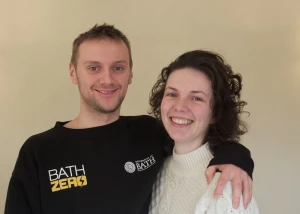
{exp:jcogs_img:image width='300' auto_sharpen='yes'}
Apply the sharpen filter to an image using the auto_sharpen parameter.
Usage Notes
If other filter values are specified in the same tag, and those other filters include auto_sharpen, then adding this parameter to the tag will have no effect.
If other filter values are specified but those other filters do not include auto_sharpen, then adding this parameter to the tag will cause the auto_sharpen filter to be applied after those other filters have been applied.
bg_color
CE Image Compatibility: Full
Defines the colour of the background behind the image layer during processing. If the image processing (e.g. rotation or the removal of transparency) will cause the background to show, this is the colour that appears.
The colour can be specified using any valid JCOGS Image Pro colour format.
Syntax + Examples
bg_color="[#]<3 or six digit hex_colour_code>" - default value: #FFFFFF (White)
bg_color="#373859"
bg_color="343434"
bg_color="#F7F"
Usage Notes
Note: Background colour is applied only to images that end up with no transparency - if an image is in a format that supports transparency then transformations that would cause the background to show are completed using a transparent fill. To apply a background colour to an image that has transparency (e.g. a PNG) simply change its format to one that does not support transparency (e.g. a JPEG).
border
CE Image Compatibility: Full
Define a solid color border around an image. For operations that change the shape of the image (e.g., applying a shape mask or rounded corners), the border is drawn relative to the resulting shape.
Border Attributes
The border parameter accepts two attributes separated by the | symbol:
- The first value specifies the border width. This can be an integer (pixels), a value with px suffix, or a percentage value (%). Percentage values are evaluated relative to the width of the processed image. The default value is 0 (no border).
- The second value specifies the border color. This can be a hexadecimal color code (with or without the # prefix), an RGB/RGBA color specification, or a CSS color name. The default color is #FFFFFF (white).
Named Attributes
Border also supports the new JCOGS Image Pro "named attributes" system, which allows you to prefix each attribute with its name. When using named attributes, they can be specified in any order, and you only need to specify the attributes you want to change from their default values.
Color Specification (Pro Enhancement)
JCOGS Image Pro supports multiple color formats beyond simple hex codes:
- Hex codes: #FFF, #FFFFFF, 4a2d14 (with or without # prefix)
- CSS #NaN: #ffb005, #dcf0104
- CSS rgba(): rgba(100,100,30,0.2) (includes alpha channel for opacity)
- Named colors: red, blue, rebeccapurple, lightgray, and 140+ other CSS color names
Syntax + Examples
border="<width>|<color>" - default value: 0|#FFFFFF
border="width:<width>|color:<color>" (named attributes format)
border="10|4a2d14"
border="width:10px|color:#4a2d14"
border="15|rebeccapurple"
border="color:rgba(100,100,30,0.5)|width:12px"
Illustration
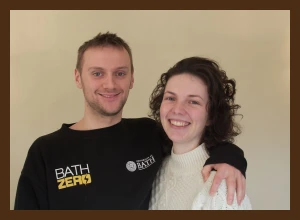
{exp:jcogs_img:image width='300' height='200' border='10|4a2d14'}
Add a 10-pixel solid border in brown (#4a2d14) to an image.
The resulting image will have dimensions increased by 20 pixels in each direction (10px border on each side).
Illustration
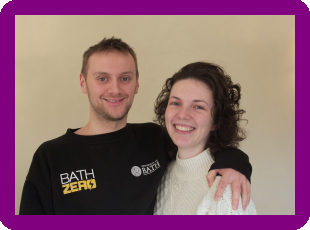
{exp:jcogs_img:image width='300' height='200' border='15|purple' rounded_corners='20%' format='png'}
Add a 15-pixel purple border using CSS color names and rounded corners.
Border is drawn around the curved shape, not the rectangular bounding box.
Illustration
{exp:jcogs_img:image width='400' height='300' border='width:5%|color:rgba(255,0,0,0.5)' format='png'}
Add a 5% border (relative to image width) in semi-transparent red using named attribute format.
For a 400px wide image, this creates a 20px border (5% of 400px).
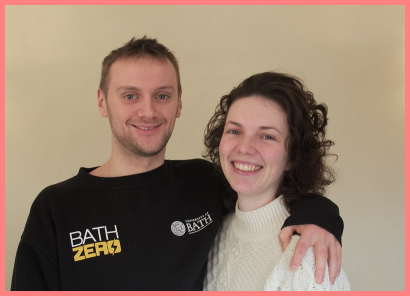
Illustration
{exp:jcogs_img:image width='300' height='300' border='color:rgb(211,211,211)|width:12' mask='circle' format='png'}
Add a 12-pixel light gray border to a circular masked image using #NaN color format.
Border follows the circular mask shape. PNG format required for transparency.
Usage Notes
Note: Border increases image dimensions
The border is added to the outer edge of the processed image, so the final image dimensions will be increased by twice the border width in each dimension. For example, a 300×200px image with a 10px border becomes 320×220px (300 + 2×10 by 200 + 2×10).
This is particularly important when sizing images for specific layouts or containers - you may need to account for the border width in your dimension calculations.
Usage Notes
Note: Non-rectangular images and transparency
For non-rectangular images (after applying operations like rounded_corners, mask, or shape transformations), the border is drawn relative to the resulting shape, not the rectangular bounding box.
To preserve transparency around borders on non-rectangular images, you must save the image as PNG or WebP format using the format or save_type parameter. JPEG format does not support transparency.
Usage Notes
Performance considerations
For rectangular images without shape transformations, border application is fast and adds negligible processing time (typically <1ms).
For non-rectangular images (after masking, rounded corners, etc.), border application requires more complex calculations and can add 5-15ms to processing time depending on image size and complexity. Ensure these images are properly cached for optimal performance.
Usage Notes
Backward compatibility with legacy format
Both the legacy position-dependent format (border="width|color") and the new named attributes format (border="width:value|color:value") work identically in JCOGS Image Pro. The named attributes format provides better readability and allows attributes to be specified in any order.
Existing templates using the legacy format will continue to work without modification.
Usage Notes
CSS color name support
JCOGS Image Pro recognizes over 140 CSS color names including: red, blue, green, yellow, orange, purple, pink, brown, gray, black, white, cyan, magenta, lime, navy, teal, olive, maroon, aqua, fuchsia, silver, and many more including modern colors like rebeccapurple.
Color names are case-insensitive. Multi-word colors use no spaces (e.g., lightblue, darkgreen, mediumseagreen).
cache
CE Image Compatibility: New feature
This parameter allows the cache setting for an image to be set at the tag level.
The parameter takes one value, which indicates the duration that cached image should remain in the cache. There are three options:
- cache="-1" The cache is set to ‘perpetual’ mode - an image will be kept in the cache until it is deleted (or overwritten). This option is the default value set when JCOGS Image Pro is first installed.
- cache="0" The cache is disabled - processed images will not be saved to the cache, and JCOGS ImagePro will not look for cached copies of processed images.
- cache="<integer|natural language duration description>" JCOGS ImagePro will create cache copies of processed images and continue to use them for <integer> seconds after the cached image is created. Alternatively you can enter a natural language duration description (e.g. 1 hour, 3 months, 2 years and five minutes) and JCOGS Image Pro will convert these to equivalent seconds for you.
If set in a tag, the value will over-rule the default value set in the JCOGS ImagePro Control Panel Settings area.
Syntax + Examples
cache="-1|0|<positive integer value>|<natural language duration description>"
cache="-1" - set the cache to perpetual mode for this tag
cache="0" - turn off caching for this tag
cache="604800" - set the cache to 604800 seconds (1 week)
cache="1 week" - set the cache to 604800 seconds (1 week)
cache_dir
CE Image Compatibility: Full
Defines the path to the JCOGS Image Pro cache folder relative to the web_root directory.
This value if specified in a tag will over-rule the default location specified in the JCOGS Image Pro control panel settings for that tag only.
JCOGS Image's powerful cache management tools will recognise where an image is saved to a location outside of the default cache location and will monitor the image's cache status.
Syntax + Examples
cache_dir="<path to folder to use>" - default value: the path specified in JCOGS Image Control Panel Settings area
cache_dir="media/images/cats"
Usage Notes
If the folder specified does not exist, JCOGS Image Pro will try to create it; if that activity fails the tag processing will stop.
The value can be specified with or without a trailing slash.
connection
The connection parameter allows you to specify a named filesystem connection for source images or cache storage. This enables JCOGS Image Pro to work with images stored in remote locations (such as AWS S3, CDN servers) or alternative local filesystem paths beyond the default web root.
Note: This parameter is Pro-only and not available in legacy JCOGS Image.
How Connections Work
Named connections are configured in the JCOGS Image Pro Control Panel or via configuration files. Each connection defines:
- Adapter type - Local filesystem, AWS S3, or other supported storage backend
- Credentials - API keys, access tokens, or authentication details (for remote storage)
- Base path - Root directory or bucket name for the connection
- Connection settings - Region, endpoint, permissions, and other adapter-specific options
Once configured, connections are referenced by name in your image tags, allowing seamless access to images regardless of their physical location.
Common Use Cases
- Cloud storage: Process images stored in AWS S3, Digital Ocean Spaces or Cloudflare R2 Storage
- Processed Image Cache organisation: Use multiple named connections on the same adapter to organise similar image types into common locations, making image management easier.
- Separate cache locations: Store processed images on different storage tiers for cost optimization
Configuration
Connections are configured by your ExpressionEngine administrator or developer through:
- JCOGS Image Pro Control Panel (Settings → Connections)
Once configured, connection names are available for use in the connection parameter.
Syntax + Examples
connection="connection_name"
connection="s3_bucket"
Illustration
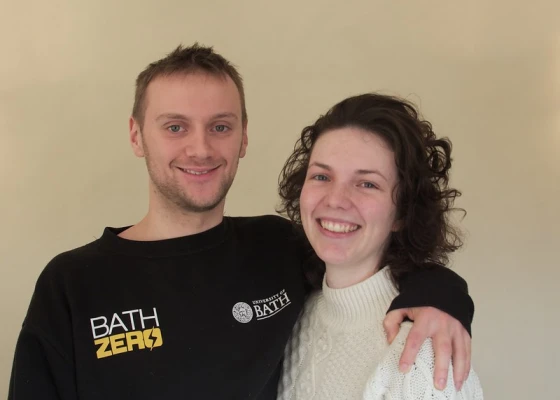
{exp:jcogs_img:image connection='s3_bucket' width='600' height='400'}
Process image using "s3_bucket" connection.
Source image processed, and cached to S3 bucket.
Usage Notes
Connection vs direct URLs
Named connections offer several advantages over direct URLs:
Without connection (direct URL):
src="https://s3.amazonaws.com/my-bucket/products/image.jpg"
- Exposes storage infrastructure details in templates
- Credentials or access patterns visible in code
- Difficult to migrate storage providers (URL changes everywhere)
- No centralized connection management
With connection (named reference):
src="products/image.jpg" connection="s3_bucket"
- Abstracts storage details from template code
- Credentials managed securely in configuration
- Easy storage provider migration (change connection config, not templates)
- Centralized connection configuration and monitoring
Usage Notes
Supported adapter types
JCOGS Image Pro supports multiple storage adapter types:
Local Filesystem:
- Type: local
- Use case: Alternative local directories, network-mounted storage
- Configuration: Base path, permissions
AWS S3:
- Type: s3
- Use case: Amazon S3 buckets, S3-compatible storage (DigitalOcean Spaces, Cloudflare R2)
- Configuration: Bucket, region, credentials, endpoint (for S3-compatible)
Additional adapters may be available in future via companion add-ons.
Usage Notes
Performance considerations
Connection type affects image processing performance:
Local connections:
- Fastest access (direct filesystem reads)
- Minimal latency (~1-5ms typical)
- Best for high-traffic, performance-critical applications
Remote connections (S3):
- Network latency added (50-200ms typical depending on region)
- First request slower, cached requests fast
- Bandwidth considerations for large images
- Excellent for storage cost optimization and scalability
Optimization strategies:
- Use aggressive caching (cache=-1 for perpetual) with remote connections
- Consider cache warming for high-traffic images
- Store frequently-accessed originals locally, archive less-used images remotely
- Use local cache with remote source for best performance balance
Usage Notes
Debug information
Use debug="yes" to troubleshoot connection issues:
src="photo.jpg" connection="s3_bucket" width="600" debug="yes"
Debug output includes:
- Connection name used
- Adapter type (local, s3, etc.)
- Connection resolution time
- Source file fetch time
- Any connection errors or warnings
- Fallback behavior (if triggered)
Usage Notes
Migration and testing
When migrating storage providers or testing connections:
- Create new connection: Define test connection alongside production connection
- Test in development: Use test connection in dev/staging environment
- Parallel operation: Run both connections simultaneously during transition
- Switch connection name: Update connection config without changing templates
- Retire old connection: Remove old connection after successful migration
Example workflow:
- Templates use: connection="primary_storage"
- "primary_storage" initially points to old connection
- Reconfigure "primary_storage" to point to new connection
- Templates unchanged, now use new connection
Usage Notes
Channel field integration
Connections integrate seamlessly with ExpressionEngine channel fields:
File field with connection reference:
src="{cf_product_image}" connection="user_uploads"
The connection name can be:
- Hardcoded in template (as shown above)
- Stored in channel field custom settings
- Determined programmatically via extension hook
Per-channel storage locations:
Different channels can use different connections for organizational clarity:
- Product images: connection="product_storage"
- User avatars: connection="user_content"
- Blog images: connection="blog_media"
This maintains logical separation and enables independent storage management per content type.
consolidate_class_style
CE Image Compatibility: New feature
By default, JCOGS Image Pro provides an advanced class / style consolidation feature for by the tag-pair and bulk-tag operating modes - to ensure that your output contains just one instance each of class and style attributes.
For some complex cases, this class / style consolidation feature can cause problems, so this tag based control allows you to disable it on a case by case basis.
Syntax + Examples
consolidate_class_style="yes|no" - Default: yes
consolidate_class_style="no"
create_tag
CE Image Compatibility: Full
Controls whether a tag will produce as output an HTML <img> tag.
The default for single tags is for create_tag= to be ‘yes’, the default for tag-pairs is for create_tag= to be ‘no’; this difference reflects the different modes of operation provided by single and pair tags.
Syntax + Examples
create_tag="yes|no" - default value: for single-tags “yes”, for tag-pairs “no”
create_tags="yes"
create_tags="y"
create_tags="n"
Usage Notes
If create_tag="no" is specified for a single JCOGS Image Pro tag, the image specified will be processed by the tag but no output will be returned to the template.
This option can be useful when debugging a template: if JCOGS Image Pro debugging is turned on, when Image processes a tag, the image processing steps will all be carried out and the add-on will generate debugging reports in the template debug log - the only difference being that no output is added to the template output; this approach can sometimes help you track down issues with your templates and Image tags more easily.
crop
CE Image Compatibility: Full
Controls whether an image will be resized to fit the dimensions given (the default behaviour) or will be cropped.
To enable cropping rather than resizing, simply add the parameter crop="yes" to your JCOGS Image Pro tag - this will request JCOGS Image Pro to crop your image using its default options for crop.
There are a large number of options for controlling how a crop is made, and if you want a different crop to the default one provided by crop="yes" read on…
How cropping works
Cropping an image replaces the source image with a smaller section of image; you can control the size of the smaller section and also its position on the source picture.
Controlling crop
Size
The size of the cropped portion of the source image will be determined by dimensions given in your tag: these can be specified either by specifying both width and height parameters (or their proxies, such as min-height or max); alternatively image can calculate these values if you specify one dimension and give an aspect ratio.
If smart scaling is enabled (the default) the image will be resized to ensure that the smaller of the source image's dimensions matches the equivalent dimension specified for the processed image - with the larger dimension being cropped to the match the other dimension specified for the processed image.
Note: If you do not supply enough information for Image to be able to work out both dimensions of the crop, Image will abandon the crop and leave the image unchanged.
Position
The position of the smaller section of the image relative to the source image is determined by the four optional values that can be associated with this parameter. Each optional value is separated from the others by the | symbol.
- The first value indicates whether or not to crop the image and takes the values yes, no, or face_detect.
- The default value is no. If the first value is not either yes or face_detect then the tag and its content is ignored during Image processing.
- If the value yes is given, Image will attempt to crop the image according to the dimension information provided in the tag, and / or using smart scaling.
- If face_detect is selected Image will first attempt to find faces within the image; if it finds any faces it will adjust the crop to focus on the faces found and any other crop parameters set will be ignored. Focusing on faces found means that the crop dimensions and location will be set to match the bounding box of the face(s) found plus the width of the parameter face_crop_margin if it is specified (default value of which is 0). If no faces are found, choosing face_detect is equivalent to choosing yes and the image will be cropped based on the dimension information given in the tag.
- The second value specifies the overall position for the crop relative to the source image in the form horizontal location, vertical location; where the horizontal position is one of left, center, right, or face_detect and the vertical position is one of bottom, center, top, or face_detect.
- Setting either the horizontal or vertical locations to face_detect will instruct JCOGS Image to position the crop such that, for the direction specified, the centre of the crop will be aligned with the centre of any group of faces detected within the image. If no faces are detected, the crop will position will fallback to the default of center.
- The third value specifies an adjustment of the position for the crop relative to the overall position specified in optional value 2, and is defined by two values, the first specifying how much to move the crop shape horizontally the second how much to move the crop shape vertically. The values can be positive or negative integers, and specified in any of the valid JCOGS Image Dimension formats. The default values are 0,0.
- The fourth value specifies whether to use smart scaling. It can take the values yes or no. The default value is yes.
Because of these defaults, specifying crop='yes' in a tag is sufficient to cause the image size to be adjusted via smart scaling and then be cropped relative to the center point of the source image.
Named Attributes
Crop also supports the new JCOGS Image Pro "named attributes" system, which allows you to prefex each attribute with its name - if all the attributes specified are named, they can be in any order, and you only need to specify the ones you want to change from the default value.
Syntax + Examples
crop="[yes|no|face_detect[|left|center|right|face_detect],[bottom|center|top|face_detect][|<integer>,<integer>[|[yes|no[|<integer>]]]]" - default value: no|center,center|0,0|yes|3
mode:[yes|no|face_detect]|position:<horizontal>,<vertical>|offset:<x>,<y>|smart_scale:[yes|no]|sensitivity:<level>
crop="yes" - equivalent to crop="yes|center,center|0,0|yes"
crop="yes|center,top" - equivalent to crop="yes|center,top|0,0|yes"
crop="yes||0,-20" - equivalent to crop="yes|center,center|0,-20|yes"
crop="yes|right,bottom|20,-20|no"
crop="face_detect"
crop="yes|face_detect,center|20,-20|no"
crop="mode:yes|position:face_detect,center|offset:20,-20|smart_scale:no"
Illustration
{exp:jcogs_img:image width='300' height='200' crop='yes'}
Crop an image to be 300 pixels wide and 200 pixles tall.
The resulting image is smart scaled to fit into a shape with dimensions 300px by 200px

Illustration
{exp:jcogs_img:image width='300' crop='yes' aspect_ratio='7:5'}
Crop an image to be 300 pixels wide and with an aspect ratio of 7x5.
The resulting image is smart scaled to fit into a shape with dimensions 300px by 214px

Illustration
{exp:jcogs_img:image width='200' crop='yes|||no' aspect_ratio='5:7'}
Crop an image to be 200 pixels wide with an aspect ratio of 5x7 with smart scaling turned off.
The resulting image will be a sub-section of the center of the image with dimensions 200px x 280px.

Illustration
{exp:jcogs_img:image width='300' crop='yes|left,top|100,100|no' aspect_ratio='16_9'}
Crop an image to be 300 pixels wide with an aspect ratio of 16:9 with smart scaling turned off, and with the crop taken from top left of the source image offset by 100 pixels in the horizontal and vertical directions.
The resulting image will be a sub-section of the top-left of the source image with dimensions 300px by 168px.

Illustration
{exp:jcogs_img:image crop='face_detect' face_crop_margin='50px' face_detect_sensitivity='5'}
Face Detect - Auto crop dimensions
Crop an image to focus on the face(s) found within the image using default face detection sensitivity setting, adding a crop margin of 50px in each direction.

Illustration
{exp:jcogs_img:image width='300' crop='yes|face_detect,face_detect||no' aspect_ratio='16_9' face_detect_sensitivity='5'}
Face Detect - Manually set crop dimensions
Crop an image to be 300 pixels wide with an aspect ratio of 16:9 with smart scaling turned off, and with the crop centered on the center of faces detected in the image.

Usage Notes
Note: A crop must always be smaller than the original image
If you set the size of your crop to be larger than the source image, JCOGS Image Pro does not know what to do - there are multiple factors that Image does not know how to resolve; accordingly rather than do something and hope it is correct, it simply does not apply the crop and writes a warning into the debug report for the template concerned.
If you want the result of the crop to be proportionately larger than the source, simply nest two tags - one to do the crop, the second to change the image size.
Usage Notes
Tips for adjusting face detection sensitivity
Face detection requires a trade-off to be made between speed and effectiveness. Each image will have its own characteristic - in some face detection will work quickly and easily, on others face detection will require more processing work to be done before the face(s) are found. In some pictures the faces may not be detected at all.
In general face detection is more easily completed where:
- the each of the face(s) to be detected form a large part (> 20% by area) of the image to be processed;
- the background to the face(s) is relatively uncomplicated (e.g. a plain colour);
- the face(s) are front-on views without obstructing / overlapping shapes (e.g. hats, veils etc) and not heavily rotated from the vertical.
JCOGS Image Pro allows you to adjust the amount of processing effort allocated to detect faces via the face_detect_quality parameter.
JCOGS Image Pro includes significantly improved face detection with three quality modes: - fast - Speed priority - balanced - Default, good compromise - thorough - Accuracy priority.
JCOGS Image Pro's face detection is more reliable than original JCOGS Image's version across varied lighting and angles.
One visual way to work out the minimum face detection sensitivity value to use is to apply the face_detect filter to the same image - this filter simply draws a box around any faces it detects in an image, and uses the same face detection algorithm used by crop; if no faces are found, no overlay box is drawn. So apply this filter to the image that you will wish to use with crop find the lowest value for face_detect_sensitivity that delivers an overlay box, and then use this value for the crop.
Usage Notes
Smart scale and face detect crops can be used together
If smart scale is enabled (the default) and the crop type is set to face detect then the image will be smart-scaled using width / height information provided in the parameter tag before face detection cropping is processed. Face detection will be used to centre the crop on the cropped dimension to be centered on any found face(s) - if no faces are found the crop focus will be center.
Usage Notes
Note:JCOGS Image Pro Dimensions
Throughout JCOGS Image Pro, dimensions can be given as an integer number (of pixels) with or without a trailing px suffix, or as a percentage value (an integer with a trailing %). If a percentage is specified, it is converted into a pixel value by multiplying the percentage value by the original image width or height as appropriate.
Usage Notes
Note on privacy / personal information:
The transformation uses an algorithm to undertake facial detection - the algorithm detects of face-like elements in an image. It does not have the capability to carry out facial recognition, and no information is captured during its operation which would facilitate the identification of the faces found in the images processed.
Usage Notes
Note on the method used:
The face detection parameter uses a modified version of a fairly old but effective algorithm called Viola-Jones / Lienhart object detection which works by looking for characteristic patterns (called Haar features) that appear on faces, and if it finds enough in a given area to suggest that it has found a face it then works out roughly where the edge of the 'face' is, and moves on to process the rest of the image.
Changing the value for “sensitivity” adjusts the size of the blocks used to identify facial features - a higher sensitivity gives a the smaller the block. The smaller the block used the more processing needs to be done to scan an image, but possibly the facial recognition activity will be more effective (i.e. find more and / or smaller faces). However if the sensitivity is set too high (too small a block size) then it is possible that some (larger) faces will be missed, and / or non-facial elements will be falsely identified as faces. So simply putting sensitivity to the max will not necessarily produce better results.
The algorithm used is generally less effective when scanning for faces that are partly occluded, or partly rotated, or faces that placed on highly complex backgrounds.
debug
CE Image Compatibility: New feature
Enable detailed diagnostic output to troubleshoot image processing operations. The debug parameter provides visibility into each stage of the image processing pipeline, helping developers identify issues with source images, cache behavior, transformations, and file operations.
What Debug Mode Shows
When enabled, debug mode outputs comprehensive diagnostic information including:
- Source retrieval - Image fetch location, method (local/remote), and file validation
- Cache operations - Cache lookup, hit/miss status, cache key generation, and cache file paths
- Image inspection - Dimension detection, MIME type, format detection (SVG, animated GIF, HEIC)
- Processing stages - Each pipeline stage execution with input/output values
- Transformations - Resize, crop, filters, overlays, and effects with parameter values
- File operations - Write operations, file paths, permissions, filesystem adapter usage
- Timing information - Execution time for each stage and total processing duration
- Error details - Exception messages, stack traces, and validation failures
Syntax + Examples
debug="yes|no|1|0"
debug="yes"
debug="1"
debug="no"
Usage Notes
Performance impact
Important: Debug mode adds processing overhead (typically 10-30ms) due to additional logging operations and message formatting. Always disable debug mode in production environments unless actively troubleshooting a specific issue.
Usage Notes
Output visibility
Debug output visibility is controlled by JCOGS Image security settings:
- Super Admins only - Default behavior. Debug messages visible only to logged-in Super Admin users.
- All logged-in users - If configured, debug output visible to any authenticated user.
- Public visibility - Generally not recommended. Debug output visible to all visitors if security settings allow.
Output format may be HTML comments, visible text, or logged to ExpressionEngine's developer log depending on configuration.
Usage Notes
Common troubleshooting scenarios
Image not displaying: Enable debug to see if source image is found, if cache lookup succeeds, and where processing fails.
SVG files not working: Debug shows SVG detection, sanitization results, dimension calculation method (TYPE_NONE, TYPE_ASPECT_RATIO, TYPE_FIXED), and any Imagine SVG library errors.
Cache issues: Verify cache keys are generated correctly, cache hits are occurring as expected, and cache file paths are accessible.
Slow processing: Timing information reveals which stages consume most processing time, helping identify bottlenecks.
Remote images failing: Shows connection attempts, HTTP status codes, redirect handling, and download errors.
Usage Notes
Debug output in templates
Debug messages appear near the generated image tag. When using JCOGS Image within loops or conditionals, each iteration generates separate debug output. To reduce noise, enable debug only for specific problematic images rather than all images in a loop.
Example selective debugging within loop:
{exp:channel:entries channel="gallery"}
    {gallery_images}
        {exp:jcogs_img_pro:single
            src="{url}"
            width="300"
            debug="{if url == 'problematic-image.jpg'}yes{/if}"
        }
    {/gallery_images}
{/exp:channel:entries}
Usage Notes
Debug mode and caching
Debug output is generated during image processing, not retrieved from cache. This means:
- Cache hits - Debug shows "using cached copy" message and skips processing stages
- Cache misses - Debug shows complete processing pipeline including all transformation stages
- Cached images - Debug mode does not affect cached image files themselves, only diagnostic output generation
To debug initial processing (not cache retrieval), clear cache first or use unique parameters to force fresh processing.
Usage Notes
Changes for Image Pro
JCOGS Image Pro provides enhanced debug output compared to legacy version:
- Pipeline stages - Pro shows discrete pipeline stage execution (Initialize → Cache Check → Load → Process → Save → Output)
- Service layer visibility - Debug messages from ValidationService, FilesystemService, CacheManagementService included
- Context tracking - Processing context flags tracked (early_cache_hit, using_cache_copy, etc.)
- Preset resolution - Shows preset loading and parameter inheritance when using preset parameter
disable_browser_checks
CE Image Compatibility: New feature
Determines whether JCOGS Image Pro will check to see if the user's browser is able to display the processed image format selected.
This parameter can be used to over-ride the default setting for this behaviour set in the add-on's control panel area.
Syntax + Examples
disable_browser_checks="yes|no" - Default: no
disable_browser_checks="yes"
disable_browser_checks="no"
exclude_class
CE Image Compatibility: New feature
Tells JCOGS Image Pro to omit a class= attribute within any <img> tag it generates from a tag it processes.
This parameter works with any JCOGS Image Pro tag, but is perhaps most useful to control how class attributes found in <img> tags processed by the Bulk Tag are handled.
Syntax + Examples
exclude_class="yes|no" Default: no
exclude_class="yes"
exclude_class="no"
exclude_regex
CE Image Compatibility: Full
To exclude certain images from being processed by the Bulk Tag, you can specify simple regex values via the exclude_regex= parameter. You can delimit multiple regex search values with the @ character.
For example, the following code would not process any image tags within a bulk tag pair that contain the terms "maps.googleapis.com" or "/images" anywhere within the <img> tag (excluding <img and >
exclude_regex="maps\.googleapis\.com@^/images"
Syntax + Examples
exclude_regex="<regex>[@<regex>]"
exclude_regex="maps\.googleapis\.com@^/images"
exclude_style
CE Image Compatibility: New feature
Tells JCOGS Image Pro to omit a style= attribute within any <img> tag it generates from a tag it processes.
This parameter works with any JCOGS Image Pro tag, but is perhaps most useful to control how style attributes found in <img> tags processed by the Bulk Tag are handled.
Syntax + Examples
exclude_style="yes|no" Default: no
exclude_style="yes"
exclude_style="no"
face_crop_margin
CE Image Compatibility: New feature
When set, this parameter instructs JCOGS Image Pro to add a margin to the area detected when using the face detect feature in the crop parameter or the face_detect filter.
The value can be specified using any valid JCOGS Image Pro Dimension format - as an integer number (of pixels) with or without a trailing px suffix, or as a percentage value (an integer with a trailing %). If a percentage is specified, it is converted into a pixel value by multiplying the percentage value by the original image width.
The default value used is 0.
Syntax + Examples
face_crop_margin="<JCOGS Image Dimension value>" - Default: 0
face_crop_margin="20px"
face_detect_sensitivity
CE Image Compatibility: New feature
When set, this parameter instructs JCOGS Image Pro to adjust the sensitivity factor used during face detection activities associated with use of the face_detect filter and the crop and face_detection_quality parameters.
The value is specified as an integer value between 1 and 9, where 1 is the least sensitive setting and 9 is the most sensitive. The higher the sensitivity value the harder Image works to detect faces in an image; working harder translates into longer image processing times. Higher values can result in a face being detected that is not recognised using lower values.
The default value for this parameter is 3.
Syntax + Examples
face_detect_sensitivity="<integer>" - Default: 3
face_detect_sensitivity="5"
face_detection_quality
CE Image Compatibility: New feature
Controls the accuracy versus performance trade-off when using face detection features with crop="face_detect" or face detection filters. This allows you to optimize face detection based on your specific use case—whether you need maximum accuracy for professional applications or faster processing for high-volume content.
Note: This parameter is Pro-only and not available in legacy JCOGS Image.
Quality Modes
Face detection uses a Haar Cascade classifier to identify faces in images. The quality setting controls the complexity and thoroughness of the detection algorithm:
- Fast - Fastest processing with lower accuracy. Uses a simplified 20-stage cascade with Canny edge pruning. Typical processing: 100-200ms. Best for batch operations and thumbnail generation.
- Balanced (default) - Good compromise between speed and accuracy. Uses standard cascade with moderate search parameters. Typical processing: 200-350ms. Recommended for most applications.
- Accurate (or thorough, precise) - Slowest processing with highest accuracy. Uses comprehensive 25-stage cascade with thorough search. Typical processing: 400-700ms. Best for professional photography and critical applications.
Relationship with face_detect_sensitivity
JCOGS Image Pro supports both face_detection_quality (new Pro parameter) and face_detect_sensitivity (legacy parameter) - they work together, not as alternatives:
- face_detection_quality - Controls detection algorithm complexity (fast/balanced/accurate)
- face_detect_sensitivity - Controls detection threshold (1-9). Lower values = only very confident matches, higher values = more aggressive detection including ambiguous faces
Default values:
- face_detection_quality: balanced
- face_detect_sensitivity: 3 for crop operations, 5 for filter operations
Best practice: Use face_detection_quality for most cases (easier, more semantic). Add face_detect_sensitivity only if fine-tuning detection threshold. Legacy templates using only face_detect_sensitivity continue to work.
Syntax + Examples
face_detection_quality="fast|balanced|accurate" - default: balanced
face_detection_quality="fast"
face_detection_quality="balanced"
face_detection_quality="accurate"
face_detection_quality="fast" face_detect_sensitivity="3"
face_detection_quality="accurate" face_detect_sensitivity="7"
Usage Notes
Choosing the right quality mode
Select your quality mode based on use case:
Use FAST when:
- Processing large volumes of images (batch operations)
- Speed is more important than perfect accuracy
- Generating thumbnails or small images
- Faces are likely centered and prominent in images
- Real-time or user-facing processing with time constraints
Use BALANCED when:
- Standard content management scenarios
- Good mix of speed and accuracy needed
- Most general-purpose applications
- Default recommendation for production sites
Use ACCURATE when:
- Professional photography or portfolio sites
- Accuracy is critical to user experience
- Processing time is acceptable trade-off
- Small, partial, or difficult faces need detection
- Critical applications where missed faces are unacceptable
Usage Notes
Performance comparison
Benchmark results for face detection on typical portrait images (average 3000×4000px):
| Quality Mode | Avg Time Per Image | Detection Rate | False Positives |
|---|---|---|---|
| Fast | 4.1ms | 94/100 | 8 |
| Balanced | 12.5ms | 98/100 | 2 |
| Accurate | 31.0ms | 100/100 | 0 |
Volume recommendations:
- < 10 images: Use accurate (quality over speed)
- 10-100 images: Use balanced (best overall trade-off)
- > 100 images: Use fast (speed critical for large batches)
Usage Notes
Caching behavior
Face detection results are cached along with the processed image:
- First request: Face detection runs at specified quality level, results cached with image
- Subsequent requests: Cached image returned instantly (no re-detection needed)
- Cache invalidation: Changing quality mode or other parameters regenerates cache
Cache key impact: The quality mode is included in the cache key, so different quality modes produce different cached images:
- cache/portrait_400x400_face-detect-fast_abc123.jpg
- cache/portrait_400x400_face-detect-balanced_def456.jpg
- cache/portrait_400x400_face-detect-accurate_ghi789.jpg
This ensures changing quality settings doesn't serve incorrect cached versions.
Usage Notes
When face detection fails
If no faces are detected (regardless of quality mode), the system falls back gracefully:
- Center crop (if dimensions specified via width/height parameters)
- Smart crop based on image content analysis
- Standard crop from top-center position
Invalid quality values automatically default to balanced with a warning in debug output.
Usage Notes
Debug information
Using debug="yes" shows face detection processing details:
- Quality mode used
- Detection time in milliseconds
- Number of faces detected
- Face coordinates (x, y, width, height)
- Whether cache was used or detection ran
- Fallback behavior if no faces found
Example: crop="face_detect" face_detection_quality="accurate" debug="yes"
Usage Notes
Migration from JCOGS Image
Legacy JCOGS Image format (still works):
crop="face_detect" face_detect_sensitivity="5"
Pro recommended format:
crop="face_detect" face_detection_quality="balanced"
Pro advanced format (both parameters):
crop="face_detect" face_detection_quality="accurate" face_detect_sensitivity="7"
The named quality modes (fast, balanced, accurate) are more semantic and self-documenting than numeric sensitivity values, making templates easier to understand and maintain.
fallback_src
CE Image Compatibility: Full
Defines a fallback image source to be used in cases where either the src= parameter is not specified, or is specified but the information provided does not point to a valid image.
This parameter is useful in cases where the developer cannot always be sure that the intended image data will always be available.
Fallback information can also be specified via the system default values set through the add-on control panel; the fallback source specified within a tag will have priority over the default value.
The fallback image source can defined using:
- the content of any ExpressionEngine File variable (or similar from an ExpressionEngine add-on field type)
- a path to file stored on the server that ExpressionEngine is running on. Local paths will be evaluated relative to the web root folder.
- a URL pointing to a file stored on a remote system
- a text string containing an appropriate EE database File record.
Remote files are cached locally during processing but only the processed version of the image is cached.
It is not important whether the source image file has an extension, or whether the given extension is correct - JCOGS Image Pro validates each image before processing, a step that includes determining the actual image format being used to ensure that the image is in a format that the local ExpressionEngine server can work with.
The format options available are determined by the abilities of the php image processing library used: for GD2 (the default library used by JCOGS Image Pro) the typically available formats are:
extension | image format |
|---|---|
bmp | Windows bitmap format |
gif | Graphics Interchange Format |
jpeg/jpg | JPEG image format |
png | Portable Network Graphics format |
webp | Webp format |
Syntax + Examples
fallback_src="<any valid local image path>|<any valid remote image path>" - default value: null
fallback_src="/media/images/default_backdrop.jpg"
fallback_src="https://images.unsplash.com/photo-1591871937573-74dbba515c4c?w=800&auto=format&fit=crop&q=60&ixlib=rb-4.0.3&ixid=M3wxMjA3fDB8MHxzZWFyY2h8N3x8a2l0dGVufGVufDB8fDB8fHww"
Illustration
{exp:jcogs_img:image width='300' src='cats' fallback_src='https://images.unsplash.com/photo-1591871937573-74dbba515c4c?w=800&auto=format&fit=crop&q=60&ixlib=rb-4.0.3&ixid=M3wxMjA3fDB8MHxzZWFyY2h8N3x8a2l0dGVufGVufDB8fDB8fHww'}
In this example src= image data is not provided so the image used is the one specified by the fallback_src= parameter.

filename
CE Image Compatibility: Full
Allows you to specify the filename prefix you would like the processed image to use.
JCOGS Image Pro names the processed images it generates using a combination of a filename and some special characters used to support reliable cache operations: this combination preserves potentially useful file naming information for Search Engines while allowing JCOGS Image Pro to attach the cache related information it needs to the processed image filename.
This parameter allows you to specify an alternative to for the original filename of the image. Note: this does not replace the full filename of the processed image, just the initial element.
For example, an image with the original name our_office.jpg when processed might be given the filename of our_office__-_2710_-_0a257337af443a3a347dcd528e6b77f6dccf82d4.jpg. When the tag generating the image includes the parameter filename='Cats_Make_Curious_Companions' the processed image filename would be Cats_Make_Curious_Companions__-_2710_-_0a257337af443a3a347dcd528e6b77f6dccf82d4.jpg.
Syntax + Examples
filename="[<string>]" - default: null
filename="Cats_Make_Curious_Companions"
filename_prefix
CE Image Compatibility: Full
Allows you to specify a prefix to add to filename the processed image will use.
JCOGS Image Pro names the processed images it generates using a combination of a filename and some special characters used to support reliable cache operations: this combination preserves potentially useful file naming information for Search Engines while allowing JCOGS Image Pro to attach the cache related information it needs to the processed image filename.
This parameter allows you to specify a prefix to be added to the original filename of the image.
For example, an image with the original name our_office.jpg when processed might be given the filename of our_office__-_2710_-_0a257337af443a3a347dcd528e6b77f6dccf82d4.jpg. When the tag generating the image includes the parameter filename_prefix='Cats_' the processed image filename would be `Cats_our_office__-_2710_-_0a257337af443a3a347dcd528e6b77f6dccf82d4.jpg.
Syntax + Examples
filename_prefix="[<string>]" - default: null
filename_prefix="Cats_"
filename_suffix
CE Image Compatibility: Full
Allows you to specify a suffix to be appended to the filename the processed image will use.
JCOGS Image Pro names the processed images it generates using a combination of a filename and some special characters used to support reliable cache operations: this combination preserves potentially useful file naming information for Search Engines while allowing JCOGS Image Pro to attach the cache related information it needs to the processed image filename.
This parameter allows you to specify a suffix to add to for the original filename of the image. Note: adds the suffix to the original filename, it does not add a suffix to the whole processed image filename.
For example, an image with the original name our_office.jpg when processed might be given the filename of our_office__-_2710_-_0a257337af443a3a347dcd528e6b77f6dccf82d4.jpg. When the tag generating the image includes the parameter filename_suffix='_likes_cats' the processed image filename would be `our_office_likes_cats__-_2710_-_0a257337af443a3a347dcd528e6b77f6dccf82d4.jpg.
Syntax + Examples
filename_suffix="[<string>]" - default: null
filename_suffix="_likes_cats"
filter
CE Image Compatibility: Full
Apply professional visual effects to images using chainable filters. From subtle enhancements like sharpening and brightness adjustments to dramatic effects like grayscale conversion and pixelation, the filter parameter provides comprehensive image manipulation capabilities.
Filter Syntax
The filter parameter uses a pipe-separated chain format where each filter can include optional parameters:
filter="filter_name:value|filter_name:value|..."
Filters are applied in the order specified, allowing you to build complex effects by combining multiple filters. Some filters accept parameters (specified after a colon), while others work without parameters.
Available Filters
All the available filters are documented in the Filters section of this documentation.
Syntax + Examples
filter="<filter_name>:<value>|<filter_name>:<value>"
filter="blur:5"
filter="sharpen:15"
filter="brightness:20|contrast:1.3"
filter="grayscale"
filter="sepia"
filter="blur:3|sharpen:10|brightness:10"
filter="colorize:50,100,200"
filter="pixelate:15"
filter="grayscale|contrast:1.5|sharpen:20"
Illustration
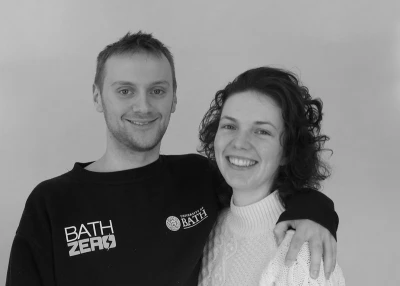
{exp:jcogs_img:image width='400' height='300' filter='greyscale|sharpen:10|brightness:10'}
Complex three-filter chain.
Combines greyscale, moderate sharpening (10), and slight brightening (10) for polished result.
Usage Notes
Filter chain order matters
Filters are applied sequentially from left to right. The order significantly impacts the final result:
- blur:5|sharpen:10 - Blurs first, then attempts to sharpen (less effective)
- sharpen:10|blur:5 - Sharpens first, then blurs (different result)
- grayscale|contrast:1.5 - Converts to grayscale, then boosts contrast (recommended)
- contrast:1.5|grayscale - Boosts color contrast, then converts to grayscale (contrast boost wasted)
For optimal results, apply color manipulations (colorize, sepia, grayscale) before tonal adjustments (brightness, contrast), and apply sharpening as the final step.
Usage Notes
Performance considerations
Filter processing adds computational overhead:
- Simple filters (brightness, contrast) - Minimal impact, typically 1-3ms
- Medium filters (sharpen, blur, grayscale) - Moderate impact, typically 3-8ms
- Complex filters (emboss, edge_enhance, colorize) - Higher impact, typically 8-15ms
Processing time scales with image dimensions. Always use the cache parameter when applying filters to avoid repeated processing. Multiple filters in a chain increase processing time additively.
Usage Notes
Optimal parameter ranges
While filters accept wide parameter ranges, certain values produce most useful results:
- blur - Values 2-10 work best. Above 20 creates extreme blur.
- sharpen - Values 5-20 effective. Above 40 creates artifacts.
- brightness - Adjustments of ±20 most common. Beyond ±50 risks clipping.
- contrast - Range 0.8-1.5 most useful. Below 0.5 or above 2.0 creates unusual effects.
- pixelate - Values 5-20 create recognizable effect. Above 30 severely degrades image.
Start with conservative values and adjust incrementally for best results.
Usage Notes
Combining filters strategically
Certain filter combinations produce professional results:
- Product photography: brightness:10|contrast:1.2|sharpen:12
- Vintage effect: sepia|contrast:0.9|brightness:-5
- Dramatic B&W: grayscale|contrast:1.6|brightness:-10
- Soft portrait: blur:2|brightness:5|sharpen:8
- High contrast color: contrast:1.4|brightness:5|sharpen:15
Experiment with combinations but limit chains to 3-4 filters to maintain processing performance and avoid compounding artifacts.
Usage Notes
Filter quality and artifacts
Aggressive filter settings can introduce visual artifacts:
- Sharpening artifacts - Halos around edges, exaggerated noise. Reduce sharpen amount or apply noise reduction first.
- Brightness clipping - Lost detail in highlights/shadows. Use moderate adjustments (±30 maximum).
- Blur banding - Visible steps in gradients. Use moderate blur values (under 15).
- Pixelation loss - Unreadable text/details. Keep block_size under 20 for legibility.
Always preview filtered images at target display size to evaluate quality before deployment.
Usage Notes
Format-specific considerations
Filter effects interact differently with image formats:
- JPEG - Compression artifacts can be amplified by sharpening. Use moderate sharpen values (under 15).
- PNG - Lossless format preserves filter details perfectly. Ideal for complex filter chains.
- WebP - Excellent filter preservation with smaller file sizes than PNG.
- GIF - Limited color palette makes colorize and sepia filters less effective.
For heavily filtered images, consider PNG or WebP output to preserve quality. Adjust quality parameter for JPEG to balance file size and filter detail preservation.
Usage Notes
Browser-side vs server-side filtering
JCOGS Image Pro applies filters server-side during image processing, which offers advantages over CSS filters:
- Performance - Processed once and cached, no runtime CPU/GPU usage
- Compatibility - Works in all browsers, including old versions
- SEO - Search engines see the filtered image
- Consistency - Identical appearance across all devices and browsers
Use server-side filtering for permanent effects. Reserve CSS filters for interactive hover effects or user-controlled adjustments.
Usage Notes
Accessibility with filters
Certain filter effects impact accessibility:
- Grayscale/Sepia - May reduce color-based information. Ensure content doesn't rely solely on color cues.
- Low contrast - Values below 0.8 may fail WCAG contrast requirements. Test with accessibility tools.
- Brightness extremes - Very bright (>50) or dark (<-50) images strain vision. Use moderate values.
- Blur - Can make text unreadable. Avoid blur on images containing critical text.
Always provide meaningful alt text describing filtered images, especially when filters significantly change appearance.
Usage Notes
Testing filter combinations
Develop an efficient workflow for finding optimal filter settings:
- Start with single filters to understand their individual effects
- Add filters one at a time to build chains incrementally
- Test on multiple source images - effects vary by content
- View at actual display size - filters appear different at various scales
- Use short cache durations during testing (e.g., cache="1 minute")
- Document successful combinations for reuse in presets
Once finalized, switch to longer cache durations (hours or days) for production use to maximize performance.
fit
CE Image Compatibility: New feature
If two image dimensions are given (or implied) in a JCOGS Image Pro tag and crop is not also specified, this tag determines how the image is scaled relative to the two dimensions.
The parameter can take one of three values:
- contain The image is scaled to fit within the box defined by the two dimensions given (or imputed) while maintaining the image aspect ratio. This is likely to result in a image that is smaller than the area defined by the bounding box. This is the default value.
- cover The image is scaled to completely fill the box on both dimensions, but is not cropped (so the larger dimension will exceed the dimensions of the box provided). This is likely to result in an image that is larger than teh area defined by the bounding box.
- distort The image dimensions are preserved and the image is allowed to be distorted to fit into the space defined.
Syntax + Examples
fit="contain|cover|distort" - Default: ‘contain’
fit="contain"
fit="cover"
fit="distort"
Illustration
{exp:jcogs_img:image width='300' height='300' fit='contain'}
Contain
The image is scaled to fit within the 300x300 bounding box specified.
Illustration
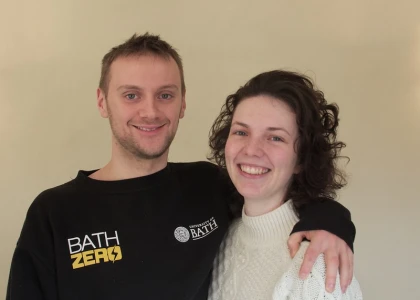
{exp:jcogs_img:image width='300' height='300' fit='cover'}
Cover
The image is scaled to fill the 300x300 bounding box specified.
Illustration
{exp:jcogs_img:image width='300' height='300' fit='distort'}
Distort
The image is distorted to fit within the 300x300 bounding box specified.

Usage Notes
If the parameter is specified with no value (e.g. fit="") or an unrecognised value it is ignored and the default value is used.
flip
CE Image Compatibility: Full
Instructs JCOGS Image Pro to flip the image content around either the vertical or horizontal axis (or both).
Syntax + Examples
flip=h|v|h|v - Default value: null
flip='h'
flip='v'
flip='h|v'
Illustration
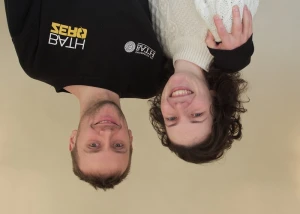
{exp:jcogs_img:image width='300' flip='v'}
Flip the image about the vertical axis.
format
CE Image Compatibility: Full
format is an alias of save_type parameter: it determines the encoding format to be used by the processed image.
The format options available are determined by the abilities of the php image processing library used on the server running the EE instance. JCOGS Image Pro actively monitors the available formats and only makes available formats that are supported: the formats available are listed in the JCOGS Image Pro Control Panel settings page in the drop-down for ‘Default Image Format’ (which also ensures that the Default Image Format is always one that can be processed by the server!).
If you specify an image format in a JCOGS Image Pro format that is not supported by the server, JCOGS Image Pro will use the Default Image Format to encode the image instead, or will retain the format of source if a default is not specified.
For GD2 (the default library used by JCOGS Image Pro) commonly available formats include:
extension | image format |
|---|---|
avif | AV1 Image File Format |
bmp | Windows bitmap format |
gif | Graphics Interchange Format |
jpeg/jpg | JPEG image format |
png | Portable Network Graphics |
webp | Webp |
For an image to be seen in a browser it is also important that the browser viewing the web page also supports the image format chosen. Where possible, when processing an image JCOGS Image actively checks that the current browser is able to display the format chosen; if the browser would not be able to display the image format chosen JCOGS Image substitutes a format that is supported both by the server and the browser (usually JPG).
The choice of which image formats to use when is a complex discussion area, and outside the scope of this manual to consider.
Syntax + Examples
format="bmp|gif|jpeg|jpg|png|webp" - Default: jpg
format="bmp"
format="webp"
Usage Notes
Transparency
Not all formats support transparency. Where possible transparency in images is preserved by JCOGS Image Pro during processing, but it is also important to make sure that the processed image is saved in a format that also supports transparency: in particular if you are manipulating a PNG image with transparency and wish the processed image to retain this transparency, make sure you specify save_type="png" in your tag.
Not all filter operations preserve transparency.
When transparency is removed during a operation, the transparent pixes are replaced by pixels coloured according to whatever colour is chosen as the default background colour.
Usage Notes
Lossy vs Lossless
JCOGS Image Pro always attempts to save images using the smallest file size option available for any given format. So for PNG and WebP images which support both lossy and lossless image storage formats, the images are saved using the lossy (compressed) format.
When JCOGS Image is run on a server providing php 8.1, when a webp format image is saved with a quality value of 100 it will be saved in webp's lossless image format.
Usage Notes
Static Caching vs. Image Format Detection
JCOGS Image Pro will actively attempt to ensure that your images are presented to a browser in a format that the browser can read. However for this active engagement to work, JCOGS Image Pro has to be able to communicate with the browser. Due to how static caching works, JCOGS Image Pro will not be able to make any adjustments to the images sent to a browser on pages that are in a static cache, and so you should be cautious about what image format you choose for pages that will be delivered in this way.
One option is to specify ‘safe’ formats (such as JPG, PNG, GIF) for your images - these formats have effectively universal support.
Another option is to code up your pages using the HTML <picture> tag - which lets you specify multiple formats for the same image, and the browser can then choose a version it can read from those offered.
A future update to JCOGS Image Pro will add in the ability to auto-generate <picture> tags for this purpose, but for now you will need to code up your own versions, making use of JCOGS Image Pro variables to construct the tags to your liking.
Usage Notes
SVG Format
JCOGS Image Pro currently provides limited support for SVG files. That support does not currently include the ability to convert images from or to the SVG format, and so if you specify svg as the format this value will be ignored and the default image format will be used instead.
hash_filename
CE Image Compatibility: Full
JCOGS Image Pro names the processed images it generates using a combination of a filename and some special characters used to support reliable cache operations: this combination preserves potentially useful file naming information for Search Engines while allowing JCOGS Image Pro to attach the cache related information it needs to the processed image filename.
For example, a file with the original name our_office.jpg might be given an output filename of our_office__-_2710_-_0a257337af443a3a347dcd528e6b77f6dccf82d4.jpg
This parameter allows you to obscure the original of the image in the output filename - the original name is replaced by a hash. Possible values are "yes" and "no", with the default being "no".
When enabled, this option would result in an output filename for our example image becoming something like 1d48854ed203acf437ef4a09c1112973fd5c9ad6__-_2710_-_0a257337af443a3a347dcd528e6b77f6dccf82d4.jpg.
Syntax + Examples
hash_filename=[yes|no] - Default: no
hash_filename="yes"
height
CE Image Compatibility: Full
Sets the height of the image to be produced. The value can be given as an integer number (of pixels) with or without a trailing px suffix, or as a percentage value (an integer with a trailing %). If a percentage is specified, it is converted into a pixel value by multiplying the percentage value by the original image height.
If the value is not specified, JCOGS Image Pro will try to impute a value for height from other parameters specified.
Syntax + Examples
height="<integer value>[px|%]" - Default value = “”
height="200px"
height="180"
height="33%"
Illustration
{exp:jcogs_img:image height='150px'}
Set the height of the image to 150px.
Since no other information is given, JCOGS Image Pro will scale the image in proportion to its original dimensions to give the height requested.

Usage Notes
Precedence
This parameter will be potentially over-ruled by any explicit settings for min_height= or max_height= or min= or max= in a tag.
% values
If a % value is specified, JCOGS Image Pro works out the equivalent value in pixels based on the width or height of the original image, except when they are used in max= or min= parameters, where the % values are always based on the width of the original image.
icc_profile
CE Image Compatibility: New feature
The icc_profile parameter controls how Image Pro handles ICC colour profiles when saving a processed image. It can convert the image from its source colour space to a specified target colour space, tag the output with a profile without converting pixel values, or remove profile metadata entirely.
Note: This parameter requires the Imagick graphics library to be active. It is silently ignored when Image Pro is configured to use GD. See Graphics Library settings.
When icc_profile is not set in a tag, Image Pro uses the site-wide Default ICC Profile Behaviour setting from the Control Panel. The tag parameter overrides this default for that specific image.
Available Values
Colour space conversion
Specifying a profile name converts the image's pixel values from the source colour space to the named target colour space and embeds the corresponding ICC profile in the output. If the source has an embedded profile, a proper colour-engine conversion is performed. If the source has no embedded profile, the output is tagged only (pixel values unchanged) — use source_icc_profile to specify an assumed source encoding when needed.
sRGB and web RGB profiles
- srgb — sRGB IEC61966-2-1 (recommended for web publishing; ensures consistent rendering on all displays)
- srgb2 — sRGB IEC61966-2-1, no black-scaling variant
- adobergb — Adobe RGB 1998
- applergb — Apple RGB
- colormatch — ColorMatch RGB
- pal_secam — PAL/SECAM
- smpte_c — SMPTE-C
- videohd — Video HD
- videontsc — Video NTSC
- videopal — Video PAL
CMYK print profiles
CMYK profiles require Imagick. They are most useful when preparing images for print workflows.
- coatedfogra27 — Coated FOGRA27
- coatedfogra39 — Coated FOGRA39
- coatedgracol2006 — Coated GRACoL 2006
- japancolor2001coated — Japan Color 2001 Coated
- japancolor2001uncoated — Japan Color 2001 Uncoated
- japancolor2002newspaper — Japan Color 2002 Newspaper
- japancolor2003webcoated — Japan Color 2003 Web Coated
- japanwebcoated — Japan Web Coated
- uswebcoatedswop — US Web Coated (SWOP)
- uswebuncoated — US Web Uncoated
- uncoatedfogra29 — Uncoated FOGRA29
- webcoatedfogra28 — Web Coated FOGRA28
- webcoatedswop2006grade3 — Web Coated SWOP 2006 Grade 3
- webcoatedswop2006grade5 — Web Coated SWOP 2006 Grade 5
Grayscale
- isogrey — ISO Coated v2 Grey 1c
The full list of available profiles, with parameter values, is also displayed in the System Settings panel when Imagick is installed.
Special values
- preserve — explicitly preserve the source image's embedded ICC profile unchanged in the output. Equivalent to the Passthrough CP setting but applied per-tag. Useful when the site-wide default is Convert to sRGB but you need to exempt a specific image.
- strip — remove all ICC profile metadata from the output, producing an untagged image (equivalent to GD behaviour). Browsers will assume sRGB encoding. Reduces file size marginally.
Relationship to Default ICC Profile Behaviour
The icc_profile parameter takes precedence over the site-wide Default ICC Profile Behaviour setting. Use the CP setting to establish a sensible default for most images on a site, and the tag parameter to override it where needed.
Caching
icc_profile is a transformational parameter and is included in the processed image's cache key. Different values of icc_profile (and different graphics library settings) produce separate cached files, so they can coexist in the same cache directory without conflict.
Syntax + Examples
icc_profile="value"
icc_profile="srgb"
icc_profile="adobergb"
icc_profile="preserve"
icc_profile="strip"
icc_profile="coatedfogra39"
Illustration
{exp:jcogs_img:image icc_profile='srgb' source_icc_profile='adobergb'}
Converting an AdobeRGB source photograph to sRGB for web delivery. The source_icc_profile parameter is included to specify the assumed source encoding — needed here because the source file has no embedded profile.
Illustration
{exp:jcogs_img:image icc_profile='preserve'}
Using preserve to exempt a specific tag from the site-wide Convert to sRGB default, retaining the source image's original wide-gamut profile for a photography portfolio page.
image_path_prefix
CE Image Compatibility: New feature
Enter a prefix for the published path to a processed image.
If entered, this value will be prefixed to the processed image path in all HTML tags generated by JCOGS Image Pro and will also made available via the {made_with_prefix} variable.
Note: Even if specified here, the prefix will only be added to a JCOGS Image Pro tag that has the parameter use_image_path_prefix='yes' set, otherwise this value is ignored.
A default value for this setting can be set within the Default Settings section of the Add-on Control Panel area.
Syntax
image_path_prefix="<path to prefix to URLs generated by Image>"
image_path_prefix="https://my_cdn/my_images/"
interlace
CE Image Compatibility: Full
When this parameter is set to ‘yes’ it instructs JCOGS Image Pro to save the processed image as an interlaced (or ‘progressive’) jpg image.
Syntax + Examples
interlace="yes|no" - Default: no
interlace="yes"
interlace="no"
Usage Notes
This parameter is ignored if the save_type= or format= parameter is set to anything other than jpg.
lazy
CE Image Compatibility: New feature
Instructs JCOGS Image to configure the <img> tag created to ‘lazy load’.
Lazy-loading is a technique to speed up the loading of image intensive pages: the loading of full-size images is deferred while the image is outside the part of the screen currently being viewed by the user.
JCOGS Image's approach to lazy-loading is one that is performant and offers strong compatibility with current browsers:
- it activates the HTML5 loading="lazy" parameter in image tags it creates - which defers loading image files until they come close to the browser viewport: by not downloading images that cannot be seen this reduces the amount of content that has to be downloaded from the server prior to rendering the page
- it replaces the processed image within the <img> tag with a placeholder image created from the processed image; these are images that have the same dimensions as the processed image but are either a low-resolution version of that image, or a plain colour field that is keyed to the ‘dominant colour’ of the processed image. This placeholder image has the same dimensions as the processed image but is much smaller than the original image
- it also loads a small javascript utility with the page which monitors whether an image is ‘in-view’ and replaces the placeholder image with the full-resolution processed image just before the image appears on screen.
The method used works and for the most-part is transparent to the user.
Lazy-loading can be set as a system option in the add-on control panel, and / or be set by adding the lazy= parameter to a tag. There are six options for the tag:
- no - turns off lazy-loading for this tag - over-rules any system default that has been set
- Low Quality Image Placeholder initially loads a low-resolution but recognisable version of the processed image that is typically about 25% of the size of the processed image.
- Dominant Colour Field initially replaces the image with a colour-field the same size as the processed image with the colour set to the most-common colour found in the processed image.
- Javascript Method Low Quality Image Placeholder works similarly to the regular Low Quality Image Placeholder option, but uses a javascript based approach to replacing the lazy image with the full resolution image, and requires a small amount of javascript to be added to your template when it is sent to your browser. This option is slightly less well supported than the regular approach, but is useful if you are trying to lazy load images that include transparency.
- Javascript Method Dominant Colour Field works similarly to the regular Dominant Colour Field option, but uses a javascript based approach to replacing the lazy image with the full resolution image, and requires a small amount of javascript to be added to your template when it is sent to your browser. This option is slightly less well supported than the regular approach, but is useful if you are trying to lazy load images that include transparency.
- HTML5 - this option does not trigger a placeholder substitution and simply adds the HTML5 attribute loading="lazy" to the completed image tag. This option is included for compatibility purposes, but in most cases, enabling Lazy Loading will result in faster page loading.
JCOGS Images' lazy-loading system is completely compatible with its responsive image options delivered via the srcset= option.
Illustration
|

|

|
For more information about how JCOGS Image has implemented lazy-loading, see the Advanced Topic entry “Lazy Loading”.
Syntax + Examples
lazy="lqip|dominant_color|js_lqip|js_dominant_color|html5|no"
lazy="lqip"
lazy="dominant_color"
lazy="js_lqip"
lazy="html5"
lazy="no"
Usage Notes
Use with manually constructed <img> tags
To use lazy loading if you are generating output using using JCOGS Image Pro Variables, e.g. via a tag-pair configuration or use of the output= parameter in a single tag then you will also need to manually include the background style element required, and a prompt within the same tag to trigger the creation of a “preload” instruction for the lazy loading image chosen.
Fortunately there is a JCOGS Image Pro Variable that can help with this: lazy_image contains the URL to the chosen lazy loading image (e.g. lqip or dominant colour), so the additional elements you need to include in your manually constructed tag are:
style=“background-image: url('{lazy_image}');”data−bglzy="{lazy_image}"
The second of these two elements will be removed by JCOGS Image during template parsing and will cause it also to add a preload instruction to the HTML <header> section.
Usage Notes
Using lazy loading with images that have transparency
You might wish to be cautious about using JCOGS Image Pro's default “background image” approach to Lazy Loading with images that have transparency: since for this approach, the lazy image (lqip or dominant colour) is loaded in the image background and then overlaid by the full resolution image; during this process the background is not removed. It is likely that both the dominant colour and lqip versions of the image with transparency will occupy more pixels than the full resolution image and so when the full resolution image is overlaid parts of the background ‘lazy’ image will continue to be visible.
Where this is likely to happen, the best option is to either disable lazy loading for the affected images, or choose the alternative javascript based lazy loading approach (which does replace the lazy image with the full resolution image.
Usage Notes
Choosing the right mode
- lqip - Best visual experience, shows preview immediately. Recommended for most sites.
- dominant_color - Lightest placeholder, good for simple layouts or bandwidth-sensitive scenarios.
- js_lqip / js_dominant_color - Use when strict Content Security Policy prevents inline styles.
- html5 - Simplest implementation, modern browsers only. No placeholder but smallest overhead.
Usage Notes
Browser compatibility
LQIP and dominant color modes work in all browsers via JavaScript fallback. HTML5 mode requires browser support for native lazy loading (Chrome 76+, Firefox 75+, Safari 15.4+, Edge 79+). Older browsers load images immediately when using html5 mode.
Usage Notes
Performance impact
Lazy loading significantly improves initial page load:
- Reduces initial bandwidth by 40-60% on image-heavy pages
- Improves Largest Contentful Paint (LCP) metric for above-fold content
- Decreases time to interactive by deferring below-fold image processing
LQIP mode adds small overhead (5-10KB per image) for placeholder generation but provides best user experience.
Usage Notes
Global settings vs parameter
Lazy loading can be enabled globally in JCOGS Image Pro settings or per-image via lazy parameter. Parameter value overrides global setting. Use lazy="no" to disable for specific images (like hero images or above-the-fold content).
Usage Notes
Combining with srcset
Lazy loading works seamlessly with responsive srcset images. Correct image variant loads based on viewport when image becomes visible:
lazy="lqip" srcset="400w|800w|1200w"
Placeholder displays immediately, then appropriate srcset variant loads when scrolled into view.
max
CE Image Compatibility: Full
Sets a maximum value for the width and height of the image after processing.
The value should be specified either as a positive integer value with no units (px assumed), or as a positive integer value with either px or % as a suffix.
Syntax + Examples
max="<integer>[px|%]" - default value: 0
max="300px"
max="200"
max="30%"
Illustration
{exp:jcogs_img:image max="200" width="400" height="400" max_height="350" crop="yes"}
This tag will produce an image with dimensions 200x350.
The max= parameter value over-rules the width= parameter value
The max_height= parameter value over-rules the max= parameter value.

Usage Notes
Precedence
This parameter will over-rule any explicit setting for width= or height= in a tag.
This parameter will be over-ruled by any setting for max_width= or max_height= in a tag.
% values
If a % value is specified, JCOGS Image Pro works out the equivalent value in pixels based on the width or height of the original image, except when they are used in max= or min= parameters, where the % values are always based on the width of the original image.
max_height
CE Image Compatibility: Full
Sets a maximum value for the height of the image after processing.
The value should be specified either as a positive integer value with no units (px assumed), or as a positive integer value with either px or % as a suffix.
Syntax + Examples
max_height="<integer value>[px|%] - Default: ‘’
max_height="220"</p><p>max_height="200px"</p><p>max_height="47%"</p>
Illustration
{exp:jcogs_img:image height="270px" max_height="220"}
Limit the maximum height of the image to 220px.
The height= figure given is over-ruled by this parameter. Since no other information is specified, the image is rescaled to give a height of 220px and the aspect ratio of the original image is maintained.
Usage Notes
Precedence
This parameter will over-rule any explicit setting for the height= or max= parameters in a tag.
% values
If a % value is specified, JCOGS Image Pro works out the equivalent value in pixels based on the width or height of the original image, except when they are used in max= or min= parameters, where the % values are always based on the width of the original image.
max_width
CE Image Compatibility: Full
Sets a maximum value for the width of the image after processing.
The value should be specified either as a positive integer value with no units (px assumed), or as a positive integer value with either px or % as a suffix.
Syntax + Examples
max_width="<integer value>[px|%] - Default: ‘’
max_width="320"</p><p>max_width="280px"</p><p>max_width="66%"</p>
Illustration
{exp:jcogs_img:image width='300' max_width='280px'}
Limit the maximum width of the image to 280px.
The width= figure given is over-ruled by this parameter. Since no other information is specified, the image is rescaled to give a width of 280px and the aspect ratio of the original image is maintained.

Usage Notes
Precedence
This parameter will over-rule any explicit setting for the width= or max= parameters in a tag.
% values
If a % value is specified, JCOGS Image Pro works out the equivalent value in pixels based on the width or height of the original image, except when they are used in max= or min= parameters, where the % values are always based on the width of the original image.
min
CE Image Compatibility: Full
Sets a minimum value for the width and height of the image after processing.
The value should be specified either as a positive integer value with no units (px assumed), or as a positive integer value with either px or % as a suffix.
Syntax + Examples
min="<integer>[px|%]" - default value: 0
min="300px"
min="200"
min="30%"
Illustration
{exp:jcogs_img:image min="250" width="200" height="200" min_height="230" crop="yes"}
This tag will produce an image with dimensions 250x230.
The min= parameter value over-rules the width= parameter value
The min_height= parameter value over-rules the min= parameter value.

Usage Notes
Precedence
This parameter will over-rule any explicit setting for width= or height= in a tag.
This parameter will be over-ruled by any setting for min_width= or min_height= in a tag.
% values
If a % value is specified, JCOGS Image Pro works out the equivalent value in pixels based on the width or height of the original image, except when they are used in max= or min= parameters, where the % values are always based on the width of the original image.
min_height
CE Image Compatibility: Full
Sets a minimum value for the height of the image after processing.
The value should be specified either as a positive integer value with no units (px assumed), or as a positive integer value with either px or % as a suffix.
Syntax + Examples
min_height="<integer value>[px|%] - Default: ‘’
min_height="120"</p><p>min_height="150px"</p><p>min_height="25%"</p>
Illustration
{exp:jcogs_img:image height="220px" min_height="250"}
Limit the minimum height of the image to 250px.
The height= figure given is over-ruled by this parameter. Since no other information is specified, the image is rescaled to give a height of 250px and the aspect ratio of the original image is maintained.

Usage Notes
Precedence
This parameter will over-rule any explicit setting for the height= or min= parameters in a tag.
% values
If a % value is specified, JCOGS Image Pro works out the equivalent value in pixels based on the width or height of the original image, except when they are used in max= or min= parameters, where the % values are always based on the width of the original image.
min_width
CE Image Compatibility: Full
Sets a minimum value for the width of the image after processing.
The value should be specified either as a positive integer value with no units (px assumed), or as a positive integer value with either px or % as a suffix.
Syntax + Examples
min_width="<integer value>[px|%] - Default: ‘’
min_width="120"</p><p>min_width="150px"</p><p>min_width="25%"</p>
Illustration
{exp:jcogs_img:image width="220px" min_width="250"}
Limit the minimum width of the image to 250px.
The width= figure given is over-ruled by this parameter. Since no other information is specified, the image is rescaled to give a width of 250px and the aspect ratio of the original image is maintained.
Usage Notes
Precedence
This parameter will over-rule any explicit setting for the width= or min= parameters in a tag.
% values
If a % value is specified, JCOGS Image Pro works out the equivalent value in pixels based on the width or height of the original image, except when they are used in max= or min= parameters, where the % values are always based on the width of the original image.
output
CE Image Compatibility: Full
Causes the output of a tag to be determined by a string entered into this parameter: any JCOGS Image Pro Variables encountered are replaced by values derived from the source image and the manipulations specified for this tag by other parameters.
Syntax + Examples
output="<string containing text and JCOGS Image variables>" - Default: ‘’
output="The width of the image is {width} pixels, the height is {height} pixels."
output="{base_64}"
output="The name of the image is {name}"
Usage Notes
When this parameter is specified, the value of the create_tag= parameter is ignored.
overwrite_cache
CE Image Compatibility: Full
When set to ‘yes’ this parameter causes JCOGS Image Pro to regenerate the image from the source regardless of other cache settings.
Syntax + Examples
overwrite_cache="yes|no" - Default: no
overwrite_cache="no"
Usage Notes
Precedence
If set to yes this parameter over-rules any other cache settings in the tag or set in the JCOGS Image Pro Control Panel Settings area. If set to no, other cache settings will be tested before a decision is made about whether to use a cached copy of an image.
palette_size
CE Image Compatibility: Partial
Used in the Palette tag to define the maximum number of colours in the palette to be displayed.
The value must be at least 2, and has a default value of 8.
Syntax + Examples
palette_size="<int>" - default “8”
palette_size="6"
png_quality
CE Image Compatibility: New feature
When set, this parameter instructs JCOGS Image Pro to save the processed png image as with the specified quality level.
A quality value of 0 gives no compression and the highest quality output. As you increase the quality value, compression rates increase giving smaller file sizes but also lower quality images. The maximum png_quality value that can be used is 9.
The default value used by JCOGS Image is a png_quality level of 6.
Syntax + Examples
png_quality="<integer value between 0-9>" - Default: 6
png_quality="7"
Usage Notes
This parameter is ignored if the save_type= parameter is set to anything other than png.
preload
CE Image Compatibility: New feature
Instructs JCOGS Image Pro to add a preload request to the <head> section of the HTML page the <img> tag appears on. This causes the image to downloaded immediately on page load - an approach that may reduce the time to “Largest Contentful Paint” (LCP) and is widely supported by browsers.
Syntax + Examples
preload="yes|no" - default “no”
preload="yes"
preload="no"
Usage Notes
Preload is only applied to <img> tags that are generated by JCOGS Image. If you ask JCOGS Image Pro to output things other than complete <img> tags (e.g. url_only="yes" or output=) then the preload= tag will be ignored.
preset
CE Image Compatibility: New feature
The preset parameter allows you to reference named parameter collections that have been pre-defined in your ExpressionEngine Control Panel. This enables you to create reusable parameter groups that can be shared across multiple image tags, promoting consistency and reducing code duplication.
Note: This parameter is Pro-only and not available in legacy JCOGS Image.
How Presets Work
When you use the preset parameter, JCOGS Image Pro's PresetResolver service loads the named preset and merges its parameters with any tag-level parameters you've specified. This creates a powerful inheritance system where presets provide defaults that can be overridden as needed.
Parameter Priority
Parameters are resolved in this order (highest priority first):
- Tag parameters - Parameters specified directly in the image tag (highest priority, override everything)
- Preset parameters - Parameters loaded from the named preset (medium priority)
- Default values - System default values (lowest priority, used if nothing else specified)
This allows you to set consistent defaults via presets while maintaining the flexibility to override specific parameters when needed.
Configuration
Presets are defined and managed through the JCOGS Image Pro Control Panel interface.
Syntax + Examples
preset="preset_name"
preset="thumbnail"
preset="hero_image"
preset="gallery_thumb"
preset="thumbnail" width="200"
preset="product_photo" quality="90"
Illustration
{exp:jcogs_img:image preset='thumbnail'}
Basic preset usage with "thumbnail" preset.
In this illustration, the "thumbnail" preset has been defined as width="150" height="150" quality="80", this produces a 150×150px thumbnail at 80% quality.

Illustration
{exp:jcogs_img:image preset='thumbnail' width='200' height='200'}
Overriding preset parameters with tag-level parameters.
Uses all "thumbnail" preset parameters EXCEPT width and height are overridden to 200px.

Usage Notes
Common preset use cases
Presets excel at maintaining consistency across your site:
- Responsive image sets: Define presets for different viewport sizes (mobile, tablet, desktop)
- Content type styling: Create presets for different content types (thumbnails, hero images, avatars, cards)
- Brand consistency: Maintain consistent image treatments, borders, effects across your site
- Performance optimization: Pre-configure optimal quality and dimension settings
- Team collaboration: Share parameter configurations across development teams without documentation
Usage Notes
Example preset definitions
While preset definitions are configured at the system level, here are example configurations demonstrating common patterns:
Thumbnail Preset:
- width: 150
- height: 150
- crop: yes
- quality: 80
- save_as: jpg
Hero Image Preset:
- width: 1920
- height: 800
- crop: yes
- quality: 85
- save_as: jpg
- lazy: native
- fetchpriority: high
Avatar Preset:
- width: 64
- height: 64
- crop: yes
- aspect_ratio: 1:1
- quality: 80
- rounded_corners: 50%
- save_as: png
Gallery Thumbnail Preset:
- width: 300
- height: 200
- crop: yes
- quality: 82
- save_as: jpg
- lazy: yes
- srcset: 300,600,900
Usage Notes
Overriding preset parameters
Tag-level parameters always take precedence over preset parameters. This allows you to use presets for consistency while maintaining flexibility:
preset="thumbnail" (uses all preset defaults)
preset="thumbnail" width="200" (overrides width only)
preset="thumbnail" width="200" quality="90" (overrides width and quality)
Any parameter can be overridden. There's no limit to the number of overrides - if needed, you can override every parameter in the preset, though at that point using a different preset or no preset might be more appropriate.
Usage Notes
Debug information
When using debug="yes", the system logs preset processing information:
- Preset name used
- Number of parameters loaded from preset
- Number of tag-level parameters
- Final merged parameter count
- Any preset resolution errors or warnings
- Parameter override details
Example: preset="thumbnail" debug="yes"
This is invaluable for troubleshooting preset configurations and understanding which parameters are coming from the preset vs tag overrides.
Usage Notes
Error handling and fallback
The preset system degrades gracefully when issues occur:
- If the specified preset name doesn't exist, the tag processes normally using only tag-level parameters and defaults
- Invalid preset definitions are logged but don't cause tag failure - invalid parameters are skipped
- Missing PresetResolver service degrades gracefully with a logged warning - tags still process
- Empty preset parameter values can be used to explicitly unset preset defaults
This ensures that preset-related issues don't break image rendering. Check debug output or logs to diagnose preset problems.
Usage Notes
Performance considerations
Preset usage has minimal performance impact:
- Resolution overhead: Presets are resolved once per tag execution (~0.1ms typical)
- Parameter merging: Merging preset and tag parameters adds negligible overhead
- Caching: Preset definitions are cached by the PresetResolver service for efficiency
- Cache keys: Final resolved parameters (not preset names) are used in cache key generation
Using presets does not affect cache efficiency - two tags with the same preset and identical overrides will share the same cached image.
Usage Notes
Preset naming conventions
Follow these conventions for clear, maintainable preset names:
- Descriptive names: Use names that describe purpose (thumbnail, hero, avatar) not appearance (small, big, round)
- Lowercase with underscores: gallery_thumb, product_detail, hero_image
- Avoid generic names: "default", "standard", "normal" are ambiguous - be specific
- Context prefixes: blog_thumbnail, product_hero, member_avatar for clarity
- Case sensitivity: Preset names are case-sensitive - maintain consistency
Usage Notes
Preset limitations
Be aware of these preset system constraints:
- No nesting: Presets cannot reference other presets - each preset is standalone
- No inheritance: No parent-child preset relationships - consider using parameter package defaults instead
- Single preset per tag: Only one preset can be specified per image tag
- Static definitions: Presets are defined at the configuration level, not dynamically per request
For complex inheritance requirements, consider using multiple image tag templates or wrapper templates with varying parameter sets.
Usage Notes
When NOT to use presets
Presets are not always the best solution:
- One-off images: Unique images with unusual requirements may be clearer with explicit tag parameters
- Highly variable parameters: If you find yourself overriding most preset parameters, reconsider preset usage
- Simple sites: Small sites with few image variations may not benefit from preset overhead
- Documentation priority: If tag readability is critical, explicit parameters may be clearer than preset references
Presets excel when you have consistent, repeated image treatments across many pages or components.
Usage Notes
Migration and maintenance
Preset-based templates are easier to maintain and update:
Without presets (parameters repeated everywhere):
Changing thumbnail size requires finding and updating dozens or hundreds of image tags across your templates.
With presets (centralized configuration):
Update the "thumbnail" preset definition once, and all thumbnail images site-wide automatically reflect the new dimensions on next cache regeneration.
This centralized control makes site-wide changes manageable and reduces the risk of inconsistencies from incomplete updates.
quality
CE Image Compatibility: Full
When set, this parameter instructs JCOGS Image Pro to save the processed image as with the specified quality level.
A quality value of 100 gives the highest quality output; lower quality values give lower quality output but usually the filesize of the images produced is also smaller.
The default value used by JCOGS Image Pro is a quality level of 90.
There is more information about the image formats that are supported by JCOGS Image in this advanced topic on image formats.
Syntax + Examples
quality="<integer value between 0-100>|lossless" - Default: 90
quality="70"
quality="lossless"
Usage Notes
This parameter is ignored if the save_type= parameter is set to anything other than webp or jpg.
Usage Notes
Saving Images using Webp Lossless Format
For servers running php 8.1 or better setting the quality value to 100, or setting the quality value to lossless will cause webp format images to be saved in webp's lossless format.
reflection
CE Image Compatibility: Full
Adds a simulated reflection of the image below the main image with control over gap, opacity gradient, and reflection height. Creates a mirror-like effect commonly used for product photography and promotional images.
Reflection Attributes
The reflection parameter accepts up to 4 attributes separated by the | symbol:
- Gap Height - Vertical separation between the image bottom and reflection start. Can be specified in pixels or percentage. Default: 0 (no gap). Percentages are relative to image height.
- Start Opacity - Opacity at the top of the reflection (closest to the image). Range: 0-100. Default: 80.
- End Opacity - Opacity at the bottom of the reflection (furthest from the image). Range: 0-100. Default: 0 (fades to transparent).
- Reflection Height - Height of the reflected image. Can be specified in pixels or percentage. Default: 50% (half the image height). Percentages are relative to image height.
Named Attributes
Reflection also supports the new JCOGS Image Pro "named attributes" system, which allows you to prefix each attribute with its name. When using named attributes, they can be specified in any order, and you only need to specify the attributes you want to change from their default values.
Named attribute names: reflection_gap, reflection_start_opacity, reflection_end_opacity, reflection_height.
How Reflection Works
The reflection creates a vertically flipped copy of the image below the original, with an opacity gradient applied from top (start opacity) to bottom (end opacity). This simulates the appearance of the image reflecting on a glossy surface.
The final image dimensions will be increased vertically by the sum of the gap height and reflection height. For example, a 400×300px image with gap=10px and reflection height=150px becomes 400×460px total (300 + 10 + 150).
Transparency Requirements
Reflections require alpha channel transparency to appear correctly. Use image formats that support transparency:
- PNG - Recommended, excellent transparency support
- WebP - Modern format with transparency
- GIF - Supports transparency but limited colors
For JPEG output (which doesn't support transparency), specify a bg_color parameter to blend the reflection gradient into the background.
Pro Enhancement: CSS Color Support for Background
When using reflection with JPEG format or when you want a specific background, JCOGS Image Pro's enhanced bg_color parameter supports multiple color formats:
- Hex codes: #FFFFFF, FFF
- CSS #NaN: #f0f8ff
- CSS rgba(): rgba(30,144,255,1.0)
- Named colors: dodgerblue, aliceblue, whitesmoke, white
Syntax + Examples
reflection="<gap>|<start_opacity>|<end_opacity>|<height>" - default: 0|80|0|50%
reflection="0"
reflection="0|80|0|50%"
reflection="20px|70|10|60%"
reflection="10px|60|20|40%"
reflection="5%|100|0|30%"
reflection="reflection_gap:10px|reflection_start_opacity:70|reflection_end_opacity:0|reflection_height:50%"
Illustration
{exp:jcogs_img:image width='300' height='200' reflection='0'}
Default reflection with no gap.
Reflection appears directly below the image with 80% to 0% opacity fade, 50% of image height.
Illustration
{exp:jcogs_img:image width='300' height='200' reflection='0|80|0|50%'}
Reflection with explicit default values.
Identical to Illustration 1 - shows all default parameters explicitly specified.
Illustration
{exp:jcogs_img:image width='400' height='300' reflection='20px|70|10|60%' format='webp'}
Custom reflection with gap and adjusted fade.
20-pixel gap, starts at 70% opacity, ends at 10% opacity (not fully transparent), 60% height.
Illustration
{exp:jcogs_img:image width='400' height='300' reflection='10px|60|20|40%' format='webp'}
Subtle reflection with gap and softer gradient.
10-pixel gap, moderate 60% to 20% opacity fade, 40% reflection height.
Illustration
{exp:jcogs_img:image width='400' height='400' reflection='10px|70|0|50%' bg_color='aliceblue' format='jpg'}
Product photo reflection with JPEG and CSS color background.
For JPEG output, use named CSS color background to blend reflection gradient properly.
Usage Notes
Dimension increases with reflection
Adding a reflection increases the final image dimensions vertically. The total height becomes:
Final Height = Original Height + Gap Height + Reflection Height
For example:
- Original: 400×300px
- Reflection: gap=10px, height=50% (150px)
- Final: 400×460px (300 + 10 + 150)
This is important when sizing images for specific layouts or containers. You may need to adjust your height parameter to account for the additional reflection space.
Usage Notes
Opacity gradient behavior
The opacity gradient is applied linearly from the top of the reflection (start opacity) to the bottom (end opacity):
- Standard fade: 80|0 - Fades from 80% opacity to fully transparent (most common)
- Gentle fade: 60|20 - Never fully transparent, maintains subtle reflection at bottom
- No fade: 50|50 - Uniform 50% opacity throughout reflection
- Inverse fade: 0|80 - Starts transparent, becomes more opaque (unusual but possible)
The gradient always progresses linearly between the two values regardless of which is higher.
Usage Notes
Gap spacing
The gap attribute (1st position) creates vertical space between the bottom of the main image and the top of the reflection. This is useful for:
- No gap (0): Creates immediate reflection effect, like a mirror surface
- Small gap (5-10px): Subtle separation, common for product photography
- Larger gap (20px+): More pronounced separation, artistic effect
- Percentage gap (5%): Scales with image size, maintains proportions across different sizes
The gap space is transparent (or uses bg_color if specified for non-transparent formats).
Usage Notes
Using reflection with JPEG format
JPEG format does not support alpha channel transparency, so reflections on JPEG require a background color to be specified. Without bg_color, the transparent reflection areas will appear as solid color (typically white or black depending on image library).
Recommended approach for JPEG:
reflection="10px|70|0|50%" bg_color="white" format="jpg"
With JCOGS Image Pro's CSS color support, you can use named colors for easy specification:
reflection="10px|70|0|50%" bg_color="aliceblue" format="jpg"
Usage Notes
Reflection height considerations
The height attribute (4th position) controls how tall the reflection appears:
- 50%: Default, half the image height - most common and visually balanced
- 30-40%: Shorter reflection, more subtle effect
- 60-80%: Taller reflection, more dramatic effect
- 100%: Full-height reflection, mirrors entire image
Percentages are calculated relative to the original image height. For example, a 300px tall image with height:50% produces a 150px tall reflection.
You can also specify absolute pixel values: height:200px creates a 200-pixel tall reflection regardless of image size.
Usage Notes
Performance considerations
Reflection processing is relatively lightweight:
- Processing time: Adds approximately 3-8ms depending on reflection height and image size
- File size impact: Increases file size due to additional image area (proportional to reflection height)
- Caching: Always cache reflection images (use cache parameter) to avoid repeated processing
Reflections with shorter heights and simpler opacity gradients process slightly faster than full-height reflections.
Usage Notes
Combining reflection with other transformations
Reflections work well with most other JCOGS Image Pro transformations:
- Compatible: border, rounded_corners, filter, watermark, text
- Special consideration: When combining with rounded_corners, ensure output format supports transparency (PNG/WebP)
- Application order: Reflection is applied after most other transformations, so border/corners affect both the original and reflection
Example: rounded_corners="20px" border="5|gray" reflection="10px|70|0|50%" format="png"
Usage Notes
Typical use cases
Reflections are commonly used for:
- Product photography: Creates professional "on glass" effect
- Logo presentations: Adds visual depth and polish
- Promotional graphics: Enhances perceived quality and sophistication
- App screenshots: Modern presentation style popular in software marketing
Best results are achieved with images that have clean, defined edges and simple backgrounds. Busy or complex background images may create distracting reflections.
Usage Notes
Minimal syntax shortcut
To apply a reflection with all default settings, simply use reflection="0" or even just reflection (though the first form is clearer).
This applies:
- No gap (0)
- 80% start opacity
- 0% end opacity (fully transparent)
- 50% height
Most use cases work well with default settings, requiring only format specification: reflection="0" format="png"
rotate
CE Image Compatibility: Full
This parameter determines the amount of rotation to be applied to an image.
The rotation is specified using a single positive or negative integer value to represent the angle of rotation (in degrees) required. Rotation is measured from the horizontal, moving in an anti-clockwise direction.
As the picture rotates, the size of the containing rectangle enlarges to allow the rotated image to sit on the page without distortion, exposing some parts of this containing rectangle: the background colour of this containing rectangle is defined either by the background colour set for the tag - which can be set either within the tag using the bg_color= parameter - the default background colour set in the JCOGS Image Pro Control Panel Settings area.
Syntax + Examples
rotate="<integer>" - Default: 0
rotate="75"
rotate="-120"
Illustration
{exp:jcogs_img:image width='300' rotate="30" bg_color="4a2d14"}
The image is rotated 30° from the horizontal. The background area exposed by the rotation is coloured #4a2d14.
Note that the size of the output image is larger than the dimensions specified in the tag parameters.
Usage Notes
Precedence
The rotation operation is applied after crop and resize operations, and after image flip operations.
rounded_corners
CE Image Compatibility: Partial
Apply rounded corners to images for modern, polished appearance. Control radius for each corner individually or set all corners at once. Optionally specify custom corner colors for creative effects.
Rounded Corners Syntax
The rounded_corners parameter supports two formats:
Positional format: rounded_corners="corner,radius[,color]|corner,radius[,color]"
Named format: rounded_corners="corner:radius|corner_color:color"
Corner Identifiers
- all - Apply to all four corners simultaneously
- tl - Top-left corner only
- tr - Top-right corner only
- bl - Bottom-left corner only
- br - Bottom-right corner only
Radius Values
Radius can be specified in pixels (20px), percentages of image dimensions (10%), or unitless numbers (interpreted as pixels).
Color Values (Optional)
When specified, corner areas are filled with the given color. Supports hex codes (#FFFFFF), named colors (white), and CSS rgb/rgba formats.
Named Attributes
Rounded corners supports named attribute format for flexible parameter ordering:
Named corner names: all, tl, tr, bl, br (for radius), and all_color, tl_color, tr_color, bl_color, br_color (for colors).
Syntax
rounded_corners="<corner>,<radius>[,<color>]"
rounded_corners="all,20"
rounded_corners="all,30px"
rounded_corners="all,15%"
rounded_corners="tl,40|br,40"
rounded_corners="all,20px,#FFF"
rounded_corners="all:25px"
rounded_corners="all:20|tl:40|br:40"
rounded_corners="all:20|all_color:#FFFFFF"
Illustration
{exp:jcogs_img:image width='400' height='300' rounded_corners='all,20' format='webp}
Equal 20-pixel radius on all corners.
Creates uniformly rounded corners with subtle curve.
Illustration
{exp:jcogs_img:image width='400' height='300' rounded_corners='all,30px' format='webp}
Larger 30-pixel uniform radius.
More pronounced rounding for modern card-style appearance.
Illustration
{exp:jcogs_img:image width='400' height='300' rounded_corners='all,15%' format='webp}
Percentage-based radius.
15% radius scales proportionally with image dimensions.
Illustration
{exp:jcogs_img:image width='400' height='300' rounded_corners='tl,40|br,40' format='webp'}
Diagonal corner rounding.
40-pixel radius on top-left and bottom-right only creates asymmetric effect.
Illustration
{exp:jcogs_img:image width='400' height='300' rounded_corners='all,20px,#FFF' format='webp'}
Rounded corners with white fill.
20-pixel radius with white color creates defined border effect.
Illustration
{exp:jcogs_img:image width='400' height='300' rounded_corners='all:25px' format='webp'}
Named attribute format.
Equivalent to positional format but with named syntax for clarity.
Illustration
{exp:jcogs_img:image width='400' height='300' rounded_corners='all:20|tl:40|br:40' format='webp'}
Mixed radii with named format.
All corners start at 20px, then top-left and bottom-right override to 40px.
Illustration
{exp:jcogs_img:image width='400' height='300' rounded_corners='all:20|all_color:#FFFFFF' format='webp'}
Named format with separate color specification.
Sets radius and color as independent attributes for maximum flexibility.
Usage Notes
Transparency requirements
Rounded corners require image formats that support transparency (alpha channel):
- PNG - Recommended, excellent transparency support
- WebP - Modern format with transparency
- GIF - Supports transparency but limited colors
For JPEG output (no transparency), specify corner color parameter to fill rounded areas with solid color instead of transparency.
Usage Notes
Percentage vs pixel radius
Choose radius units based on your needs:
- Pixels (20px) - Absolute sizing, consistent appearance across all image dimensions
- Percentages (15%) - Relative sizing, scales proportionally with image size
- Unitless (20) - Interpreted as pixels
Percentages calculated relative to shortest image dimension to prevent excessive rounding on narrow images.
Usage Notes
Override pattern
When using all with individual corners, individual specifications override the general setting:
rounded_corners="all,20|tl,40|br,40"
This sets all corners to 20px, then overrides top-left and bottom-right to 40px. Final result: TL=40px, TR=20px, BL=20px, BR=40px.
Usage Notes
Performance considerations
Rounded corner processing is relatively lightweight (typically 2-5ms) but requires transparency-capable formats which have larger file sizes than JPEG. Balance appearance needs with file size:
- WebP with rounded corners - Best balance of quality and file size
- PNG with rounded corners - Larger files but maximum quality
- JPEG with corner colors - Smallest files but no true transparency
Always use cache parameter to avoid repeated processing.
Usage Notes
Combining with other effects
Rounded corners work well with complementary effects:
- With border: rounded_corners="all,20" border="5|#333" - Border follows rounded shape
- With shadow: Add CSS box-shadow for depth perception
- With reflection: rounded_corners="all,15" reflection="10px" - Reflection includes rounded shape
Avoid combining with heavy filters that may create artifacts at rounded edges.
Usage Notes
CE Image Compatibility Note: The CE Image facility to specify a different background colour for each corner is not supported. To specify a background colour to use where corners are being applied to a non-transparent image format, use the bg_color parameter to specify the same colour to use for all the corners defined.
save_type
CE Image Compatibility: Full
save_type is an alias of format parameter: it determines the encoding format to be used by the processed image.
The format options available are determined by the abilities of the php image processing library used on the server running the EE instance. JCOGS Image Pro actively monitors the available formats and only makes available formats that are supported: the formats available are listed in the JCOGS Image Pro Control Panel settings page in the drop-down for ‘Default Image Format’ (which also ensures that the Default Image Format is always one that can be processed by the server!).
If you specify an image format in a JCOGS Image Pro format that is not supported by the server, JCOGS Image Pro will use the Default Image Format to encode the image instead, or will retain the format of source if a default is not specified.
For GD2 (the default library used by JCOGS Image Pro) commonly available formats include:
|
extension |
image format |
|---|---|
|
avif |
AV1 Image File Format |
|
bmp |
Windows bitmap format |
|
gif |
Graphics Interchange Format |
|
jpeg/jpg |
JPEG image format |
|
png |
Portable Network Graphics |
|
webp |
Webp |
For an image to be seen in a browser it is also important that the browser viewing the web page also supports the image format chosen. Where possible, when processing an image JCOGS Image actively checks that the current browser is able to display the format chosen; if the browser would not be able to display the image format chosen JCOGS Image substitutes a format that is supported both by the server and the browser (usually JPG).
The choice of which image formats to use when is a complex discussion area, and outside the scope of this manual to consider.
Syntax + Examples
save_type="bmp|gif|jpeg|jpg|png|webp" - Default: jpg
save_type="bmp"
save_type="webp"
Usage Notes
Transparency
Not all formats support transparency. Where possible transparency in images is preserved by JCOGS Image Pro during processing, but it is also important to make sure that the processed image is saved in a format that also supports transparency: in particular if you are manipulating a PNG image with transparency and wish the processed image to retain this transparency, make sure you specify save_type="png" in your tag.
Not all filter operations preserve transparency.
When transparency is removed during a operation, the transparent pixes are replaced by pixels coloured according to whatever colour is chosen as the default background colour.
Usage Notes
Lossy vs Lossless
JCOGS Image Pro always attempts to save images using the smallest file size option available for any given format. So for PNG and WebP images which support both lossy and lossless image storage formats, the images are saved using the lossy (compressed) format.
When JCOGS Image Pro is run on a server providing php 8.1, when a webp format image is saved with a quality value of 100 it will be saved in webp's lossless image format.
Usage Notes
Static Caching vs. Image Format Detection
JCOGS Image Pro will actively attempt to ensure that your images are presented to a browser in a format that the browser can read. However for this active engagement to work, JCOGS Image Pro has to be able to communicate with the browser. Due to how static caching works, JCOGS Image Pro will not be able to make any adjustments to the images sent to a browser on pages that are in a static cache, and so you should be cautious about what image format you choose for pages that will be delivered in this way.
One option is to specify ‘safe’ formats (such as JPG, PNG, GIF) for your images - these formats have effectively universal support.
Another option is to code up your pages using the HTML <picture> tag - which lets you specify multiple formats for the same image, and the browser can then choose a version it can read from those offered.
A future update to JCOGS Image Pro will add in the ability to auto-generate <picture> tags for this purpose, but for now you will need to code up your own versions, making use of JCOGS Image Pro variables to construct the tags to your liking.
Usage Notes
SVG Format
JCOGS Image Pro currently provides limited support for SVG files. That support does not currently include the ability to convert images from or to the SVG format, and so if you specify svg as the save_type this value will be ignored and the default image format will be used instead.
sizes
CE Image Compatibility: New feature
Define how much viewport width an image occupies at different screen sizes. Works with srcset to help browsers select optimal image variant for current display context.
Sizes Syntax
The sizes parameter uses CSS media query syntax to specify image display width at different viewport sizes:
sizes="(media-condition) width, (media-condition) width, default-width"
Browser evaluates media conditions in order and uses first matching width value to determine which srcset variant to download.
Width Value Formats
- Viewport units: 100vw (full viewport width), 50vw (half), 33.3vw (one-third)
- Pixels: 800px, 400px - Fixed widths
- Calc expressions: calc(100vw - 80px) - For layouts with fixed margins
Media Conditions
Standard CSS media queries without @media prefix:
- (max-width: 768px) - Mobile/small screens
- (min-width: 769px) and (max-width: 1024px) - Tablets
- (min-width: 1025px) - Desktop and larger
Syntax + Examples
sizes="(media-condition) width, default-width"
sizes="(max-width: 768px) 100vw, 50vw"
sizes="(max-width: 600px) 100vw, (max-width: 1200px) 50vw, 800px"
sizes="(max-width: 768px) calc(100vw - 40px), 1200px"
sizes="100vw"
Usage Notes
This tag is ignored if a srcset= parameter is not also defined within the JCOGS Image tag.
Usage Notes
How browsers use sizes
Browser combines sizes with srcset to select optimal image:
- Evaluates sizes media conditions to determine image display width
- Considers device pixel ratio (e.g., 2x for retina)
- Calculates required image width (display width × pixel ratio)
- Selects closest srcset variant that meets or exceeds required width
Accurate sizes specification helps browsers make optimal choices and avoid downloading unnecessarily large images.
Usage Notes
Default sizes behavior
If sizes is omitted but srcset is present, browsers assume sizes="100vw" (image fills viewport). This often causes desktop users to download mobile-optimized images when they need larger variants. Always specify sizes when using srcset for best results.
Usage Notes
Match your layout breakpoints
Sizes media conditions should match your CSS layout breakpoints:
- If CSS makes images full-width on mobile (≤768px), use (max-width: 768px) 100vw
- If CSS creates 2-column grid on tablet (769-1024px), use (max-width: 1024px) 50vw
- If CSS fixes content width at 1200px on desktop, use default 1200px
Mismatched breakpoints result in suboptimal image selection and wasted bandwidth.
Usage Notes
Using calc() for margins
When images have fixed margins/padding that don't scale with viewport:
sizes="(max-width: 768px) calc(100vw - 40px), 1200px"
This tells browser image is full viewport minus 40px of padding on mobile. More accurate sizing = better variant selection.
Usage Notes
Debugging sizes selection
Browser DevTools Network tab shows which srcset variant was selected. If browser chooses unexpected variant:
- Check sizes media conditions match actual breakpoints
- Verify width values accurately reflect image display size
- Remember retina displays may select 2x larger images
- Test at actual device widths, not just browser resize
Well-configured sizes dramatically improves bandwidth efficiency on mobile devices.
source_icc_profile
CE Image Compatibility: New feature
The source_icc_profile parameter tells Image Pro the assumed colour space encoding of a source image that has no embedded ICC profile. When used alongside icc_profile, it enables a proper colour-engine conversion even when the source file contains no profile information.
Note: This parameter requires the Imagick graphics library to be active. It is silently ignored when Image Pro is configured to use GD.
Note: If the source image already has an embedded ICC profile, source_icc_profile is silently ignored — the real embedded profile always takes precedence.
Why this parameter is needed
When Image Pro converts an image to a different colour space using icc_profile, ImageMagick's colour engine needs to know the source colour space in order to remap pixel values correctly. If the source image has an embedded profile, this information is available automatically. If the source has no profile, ImageMagick has nothing to convert from and can only tag the output — pixel values are left unchanged, which may produce incorrect colours.
Specifying source_icc_profile provides the missing source context, enabling a correct colour-engine conversion.
Typical use case
A photographer exports images from their editing software without embedding a profile, but their images are encoded in AdobeRGB colour space. Without an embedded profile, Image Pro cannot distinguish them from sRGB images, and a conversion using icc_profile="srgb" would only tag the output — not convert pixel values — leaving colours incorrect on standard displays. Adding source_icc_profile="adobergb" tells Image Pro the actual source encoding, enabling a correct AdobeRGB → sRGB conversion.
Available Values
The accepted values are the same profile names as for icc_profile, with the exception of the special values preserve and strip (which are not meaningful as source assumptions). The most commonly useful values are:
- srgb — source is assumed to be sRGB-encoded (the most common case for web images exported without a profile)
- adobergb — source is assumed to be AdobeRGB-encoded (common for professional camera files exported without an embedded profile)
All RGB, CMYK, and greyscale profile names supported by icc_profile are also accepted here. See icc_profile for the full list.
Important: this is an assertion, not a detection
source_icc_profile does not analyse or detect the actual encoding of the source image — it asserts what you believe the encoding to be. If the value you specify does not match the actual source encoding, the colour conversion will produce incorrect results. Only use this parameter when you are certain of the source image's colour space.
Caching
source_icc_profile is a transformational parameter and is included in the processed image's cache key. Different values produce separate cached files, which can coexist in the same cache directory without conflict.
Syntax + Examples
source_icc_profile="value"
source_icc_profile="srgb"
source_icc_profile="adobergb"
source_icc_profile="adobergb" icc_profile="srgb"
Illustration
{exp:jcogs_img:image icc_profile='srgb' source_icc_profile='adobergb'}
Converting an untagged AdobeRGB source to sRGB for web delivery. source_icc_profile provides the missing source context; icc_profile specifies the target.
Illustration
{exp:jcogs_img:image icc_profile='srgb'}
If the source image already has an embedded AdobeRGB profile, source_icc_profile is not needed — icc_profile="srgb" alone is sufficient.
src
CE Image Compatibility: Full
Defines the source image used by the tag.
You can supply the source image in several ways:
- The value of an ExpressionEngine File variable (or a similar file value from another field type)
- A local server path (resolved relative to the site web root)
- A full remote URL
- A text value containing a valid ExpressionEngine file record
If the source is remote, Image Pro downloads it to the local server before processing. Processed output is then cached in the normal way.
Image Pro validates the image before processing. This includes checking the real file format, so processing does not depend on the file extension being present or correct.
Image format support depends on the active processing library. Image Pro supports multiple processing libraries through Imagine drivers: GD (default), Imagick, and Gmagick.
If a non-default library is selected but not available on the server, Image Pro falls back to GD automatically.
HEIC note: Image Pro can open HEIC images and converts them to JPEG before normal processing. This allows HEIC sources to be used even when direct HEIC handling is limited in the active PHP image extension.
Syntax + Examples
src="<any valid local image path>|<any valid remote image path>" - default value: null
src="/media/images/growling_tiger.jpg"
src="https://images.unsplash.com/photo-1591871937573-74dbba515c4c?w=800&auto=format&fit=crop&q=60&ixlib=rb-4.0.3&ixid=M3wxMjA3fDB8MHxzZWFyY2h8N3x8a2l0dGVufGVufDB8fDB8fHww"
Illustration
{exp:jcogs_img:image src='media/a_word_from_our_sponsor.png'}
A tag using a local image source.

Illustration
{exp:jcogs_img:image src='https://images.unsplash.com/photo-1591871937573-74dbba515c4c?w=800&auto=format&fit=crop&q=60&ixlib=rb-4.0.3&ixid=M3wxMjA3fDB8MHxzZWFyY2h8N3x8a2l0dGVufGVufDB8fDB8fHww'}
A tag using a remote image source.

Usage Notes
What happens if the src parameter is empty / blank?
If the src parameter is missing , or is supplied with an empty value in an image, single or pair tag, JCOGS Image will first attempt to substitute either the nominated fallback_src image (if there is one specified in the tag) or consult the defaults in Image Settings to see if a global default for fallback image has been provided: if it is able to use a fallback alternative it will.
If no fallback alternative is available, JCOGS Image Pro will end processing of the tag without doing any processing.
Usage Notes
Remote Image Files
If a remote source image file is specified the source file will be downloaded to the local server before processing begins, which adds time to the total processing time for the template holding the JCOGS Image Pro tag.
If a remote image is not obtained within a reasonable period, or if it is found to be unavailable, JCOGS Image Pro will first attempt to use a fallback_src= image. If no fallback image is specified, or if that image too is unavailable, JCOGS Image Pro will terminate processing of the tag.
The default caching setup for JCOGS Image Pro enables the add-on to avoid the need to download or process the remote source image again in subsequent calls to the template: for site performance reasons you are strongly encouraged to retain these settings for remote image files (either by leaving the add-on with default settings, or adding cache= parameter to your tags with remote image sources).
srcset
CE Image Compatibility: New feature
Generate responsive image sets that serve appropriately-sized images based on device capabilities and viewport dimensions. Reduces bandwidth usage and improves performance by delivering only the pixels needed for each display context.
Srcset is one of the most effective image performance tools available. On responsive pages it can significantly reduce transferred image bytes while preserving visual quality on high-DPI displays.
- 40-70% bandwidth reduction on mobile-heavy traffic patterns
- Faster page rendering on slower connections and constrained devices
- Improved Core Web Vitals outcomes when used with accurate sizes values
The srcset attribute in an <img> tag lets you provide alternative versions of the same image. The browser then chooses one image to download for the current viewing context.
There are two ways to define srcset values:
- Width mode (w) for layout-responsive images, for example 400w|800w|1200w or 400|800|1200
- Pixel density mode (x) for fixed-layout images at multiple display densities, for example 1x|1.5x|2x
In width mode, pair srcset with sizes so the browser can make better candidate choices for each breakpoint. For compatibility, img tags using srcset should also include src, but src is mainly a fallback path when srcset processing is unavailable.
Intelligent Variant Selection
A browser uses srcset with the sizes attribute to determine which image variant to download based on:
- Current viewport width
- Device pixel ratio (retina displays)
- Network conditions (in some browsers)
Note: when a browser supports width-based srcset, the browser selects a candidate from srcset based on its own environment and policies (viewport, DPR, zoom, and potentially network conditions) - and it only downloads one image (the one it has chosen).
For Image Pro 2.1.1+, when Image Pro is generating the img tag and srcset is active, the URL value used for the src attribute is chosen from generated candidates using a balanced midpoint strategy by default. You can override this by adding the srcset_smallest_src parameter to your tag (e.g. srcset_smallest_src="y") to force Image Pro to the smallest generated variant for the src value.
Find out more: WHATWG HTML image source selection, WHATWG adaptive images, and MDN img/srcset.
Srcset Syntax
The Image Pro srcset parameter is used to define the <img> srcset attribute and to generate the required multiple image variants at different widths.
The tag can be specified in two ways - either using image width markers, or using image pixel density markers.
Note: HTML specification prevents the mixing of width and pixel density markers in the same srcset attribute value.
Width mode
The most common and the most powerful variant, specified by giving a pipe separated list of widths.
Note: HTML specification requires that the values be specified in ascending size order.
srcset="width1|width2|width3" or srcset="width1w|width2w|width3w"
Each value represents an image width in pixels. JCOGS Image Pro generates variants at specified widths and creates srcset attribute with all variants.
Examples
- Pixels only: srcset="400|800|1200" - Generates 400px, 800px, and 1200px wide variants
- With 'w' descriptor: srcset="400w|800w|1200w" - Equivalent, explicitly includes width descriptor
Pixel Density Mode
In this mode, values are specified using ratios that represent the pixel density relative to the rendered pixel dimensions: the values can be integer or float values, and should have a suffix 'x' to indicate that they should be interpreted as pixel density values rather than widths.
srcset="1.0x|1.5x|2x"
Syntax
srcset="<width1>|<width2>|<width3>..."
srcset="320|640|960|1280"
srcset="320w|640w|960w|1280w"
srcset="1x|1.5x|2x"
Illustration
{exp:jcogs_img:image width='550' srcset='250|50%|300px|400'}
Width Mode example
The example parameters will produce an HTML <img> tag with the following content:
JCOGS Image has created an entry in the srcset= parameter within the <img> tag for each of the size options included in the parameter within the JCOGS Image tag, and a simple default sizes= parameter.
Illustration
{exp:jcogs_img:image width='550' srcset='1x|1.5x|2x'}
Pixel Density Mode example
The example parameters will produce an HTML <img> tag with the following content:
JCOGS Image has created an entry in the srcset= parameter within the <img> tag for each of the size options included in the parameter within the JCOGS Image tag, and a simple default sizes= parameter.
Usage Notes
Choosing breakpoint widths
Select srcset widths based on common device categories:
- Mobile: 320px, 375px, 414px
- Tablet: 768px, 1024px
- Desktop: 1280px, 1440px, 1920px
Typically 3-5 variants provide good balance. More variants = more cache storage but finer optimization.
Usage Notes
Srcset with sizes parameter
Srcset works best with sizes parameter which tells browser how much viewport width image will occupy:
srcset="400|800|1200" sizes="(max-width: 768px) 100vw, 50vw"
Without sizes, browser assumes image fills viewport width (100vw).
Usage Notes
Pixel-Density Mode Behaviour
In density mode, each descriptor is converted into a target width by multiplying the processed base width by the density value.
- Example: base width 236 with
srcset="1x|2x"requests 236px and 472px candidates. - If a target exceeds allowed limits, that candidate is skipped unless allow_scale_larger="yes" allows larger generation.
- The 1x candidate can map to the main processed image (no duplicate file generation needed).
Usage Notes
sizes with Width vs Density Modes
- Width mode: sizes is strongly recommended and drives width-based candidate selection.
- Density mode: if custom sizes is provided it is passed through to the output, but it does not control x-descriptor candidate selection.
- Density mode without sizes: no auto-generated sizes attribute is emitted.
Usage Notes
Note about using with the allow_scale_larger parameter
The role of srcset is to help the browser download the optimum size (i.e. smallest) image for the browser conditions encountered: for example if you are viewing an image on a mobile device, the user will get better performance if an appropriate sized image is downloaded rather than one designed for full-size browser windows.
Because of this, under normal conditions it does not make sense to have srcset generate alternative images that are larger than the processed image: the user will get an equivalent experience from the processed image being downloaded and scaled up in the browser. Accordingly srcset's default behaviour is to only generate variants of the processed image that are smaller.
However, under some conditions it might be useful for this rule to be broken - for example if your processed image includes filter effects such as text or image overlays, where the overlay element might be rendered more sharply on a scaled up image than would be case for base processed image being enlarged in the browser.
To allow for this, if you set allow_scale_larger="yes" as a parameter in your tag, Image will set the processed image width to match the largest valid srcset width encountered, and process the image accordingly, even if this width is larger than the nominal width of the processed image.
Usage Notes
Cache implications
Each srcset variant is cached separately. A srcset with 4 widths creates 4 cached files. Consider storage when choosing number of variants. Use cache parameter to control cache duration.
srcset_smallest_src
CE Image Compatibility: New feature
Control which generated responsive variant Image Pro uses for the img src fallback URL when srcset is enabled.
By default, Image Pro uses a balanced fallback strategy that selects a generated candidate near the geometric midpoint of configured srcset widths. This usually provides a better compromise between baseline quality and fallback payload size.
Set srcset_smallest_src="yes" when you explicitly want the smallest generated srcset variant used as the src fallback.
Srcset Smallest Src Values
no (default)
srcset_smallest_src="no" - Uses balanced fallback selection. Recommended for most use cases.
yes
srcset_smallest_src="yes" - Forces the smallest generated srcset variant into the img src fallback.
Accepted boolean-style values
The parameter accepts yes/no style values including yes/no, y/n, 1/0, and true/false.
Syntax + Examples
srcset_smallest_src="yes|no"
srcset="400|800|1200" srcset_smallest_src="no"
srcset="400|800|1200" srcset_smallest_src="yes"
srcset="320w|640w|960w|1280w" srcset_smallest_src="yes"
Illustration
{exp:jcogs_img:image width='1200' height='800' srcset='400|800|1200' srcset_smallest_src='no' cache='1 hour'}
Balanced fallback (default).
Src fallback uses a middle-range generated candidate when srcset is active.
Illustration
{exp:jcogs_img:image width='1200' height='800' srcset='400|800|1200' srcset_smallest_src='yes' cache='1 hour'}
Smallest fallback override.
Src fallback is forced to the smallest generated srcset candidate.
Usage Notes
When this parameter applies
This parameter only affects fallback src selection when srcset is enabled and responsive variants are generated. If srcset is not used, Image Pro src output behaves as normal.
Usage Notes
Why default is no
The default balanced mode is designed to provide a practical fallback for user agents that do not use srcset, without always forcing either the smallest or largest candidate.
Usage Notes
Browser source selection context
In modern user agents using width-based srcset, candidate selection is made from srcset according to browser logic. The src URL is primarily fallback-oriented in those contexts.
References: WHATWG image source selection, MDN img/src, MDN img/srcset.
Usage Notes
Width vs density descriptor behaviour
srcset_smallest_src is most relevant for width-descriptor srcset sets. In density-descriptor sets, Image Pro fallback logic prefers a 1x variant where available.
Usage Notes
Preset and Control Panel support
This parameter is available in preset editing as a yes/no radio control with explanatory guidance.
svg_passthrough
CE Image Compatibility: New feature
Determines whether SVG format image sources are processed or ignored.
When this option is enabled, JCOGS Image will generate an output file based from a source SVG file - the svg file itself is simply copied from the source to the JCOGS Image cache directory, but some of the requested parameters are acted upon. This behaviour is designed primarily to allow SVG images to be included in media collections, such that if they are included as source files Image generates some output rather than the previous behaviour (and still the default) of producing of none.
For a more complete discussion of JCOGS Image's support for SVG image format, there is an Advanced Topic entry about this.
Syntax + Examples
svg_passthrough="yes|no" - Default: no
svg_passthrough="yes"
svg_passthrough="no"
Usage Notes
Recommendation: It is highy recommended that an image dimension (e.g. width or height parameter or similar) is included in the JCOGS Image template tag used to trigger processing: doing so will put a limit on the size of the SVG rendered in your template output. Without such limitation the SVG will be scaled to the dimensions specified in the SVG itself (if such are specified).
Usage Notes
JCOGS Image's ability to process SVG images is limited: this limitation primarily is a reflection of the wider absence of SVG tools within the php language environment.
Currently the parameters acted upon are limited to those related to image size (e.g. width, height, max, min, aspect ratio etc) and image caching (cache duration, cache location).
Over time the range of parameters supported will be expanded as the capabilities of available php tools expands.
text
CE Image Compatibility: Full
Overlays text on an image with extensive control over font, color, size, position, shadow effects, background colors, and rotation. Text is automatically word-wrapped within the image or a narrower box if specified.
Text Overlay Attributes
The text parameter accepts up to 17 attributes separated by the | symbol. Only the first attribute (text content) is mandatory:
- Text Content (mandatory) - The text to overlay on the image. Cannot contain | in legacy format; use an EE variable to include pipes in your text.
- Minimum Dimensions - Two values (width,height) specifying minimum image size for text to be added. Default: 0,0 (always add text).
- Font Size - Size of font in pixels or points. Default: 12px. Format: integer with optional px or pt suffix.
- Line Height - Height of text lines for multi-line text. Default: 1.25 (125% of font size). Accepts numbers, px values, or percentages.
- Font Color - Color of the text. Default: white (#FFFFFF). Supports hex strongs, #NaN, rgba(), and CSS color names.
- Font Source - Path to TrueType font file (.ttf) relative to web root. Default: Voces Regular (built-in font).
- Text Alignment - Alignment within text box. Values: left, center, right. Default: center.
- Box Width Adjustment - Width constraint for text box. Positive values = absolute width, negative values = reduction from image width. Default: full image width.
- Position - Two values (horizontal,vertical) for text box position. Horizontal: left, center, right. Vertical: top, center, bottom. Default: center,center.
- Offset - Two dimension values (x,y) for fine adjustment from general position. Default: 0,0.
- Text Opacity - Transparency of text (0=transparent, 100=opaque). Default: 100. Overrides alpha in color specification.
- Shadow Color - Color of text shadow. Default: transparent (no shadow). Supports CSS colors, #NaN, rgba().
- Shadow Offset - Two dimension values (x,y) for shadow displacement. Default: 1,1 if shadow color specified.
- Shadow Opacity - Transparency of shadow (0-100). Default: 100. Overrides alpha in shadow_color.
- Text Box Background - Background color for entire text box. Default: transparent. Supports CSS colors with alpha.
- Text Background - Background color directly behind text characters. Default: transparent.
- Rotation (Pro only, 17th attribute) - Rotation angle in degrees (0-360). Positive = clockwise, negative = counter-clockwise. Default: 0.
Named Attributes
Text supports the new JCOGS Image Pro "named attributes" system, which allows you to prefix each attribute with its name. When using named attributes, they can be specified in any order, and you only need to specify the attributes you want to change from their default values.
Named attribute names: content, min_size, font_size, line_height, color (or font_color), font (or font_src), align (or text_align), box_width (or width_adjustment), position, offset, opacity, shadow_color, shadow_offset, shadow_opacity, box_bg (or text_box_bg), text_bg, rotation.
Color Specification (Pro Enhancement)
All color attributes support multiple formats:
- Hex strongs: #FFF, #FFFFFF, 4a2d14
- CSS #NaN: #ffb005
- CSS rgba(): rgba(100,100,30,0.2)
- Named colors: red, white, rebeccapurple, etc.
Syntax
text="<content>|<min_width>,<min_height>|<font_size>|<line_height>|<font_color>|<font_src>|<text_align>|<width_adjustment>|<position_h>,<position_v>|<offset_x>,<offset_y>|<opacity>|<shadow_color>|<shadow_x>,<shadow_y>|<shadow_opacity>|<text_box_bg>|<text_bg>|<rotation>"
text="content:<text>|font_size:<size>|color:<color>|position:<h>,<v>" (named attributes - simplified)
text="Copyright 2025"
text="Hello World|0,0|24px"
text="Sample Text|0,0|32|1.5|#FF0000"
text="content:Watermark|font_size:18|color:white|opacity:50|position:right,bottom"
text="content:Featured Product|font_size:48|color:rgba(255,255,255,0.9)|shadow_color:rgba(0,0,0,0.8)|shadow_offset:2,2"
Illustration
{exp:jcogs_img:image width='400' height='300' text='Copyright 2025'}
Simple text overlay with default settings.
Text "Copyright 2025" appears centered on the image in white 12px font.
Illustration
{exp:jcogs_img:image width='400' height='300' text='Sale!|0,0|24px|1.2|#FF0000||left||left,top|20,20'}
Larger text with custom font size and color positioned at top-left.
24px red text reading "Sale!" positioned in the top-left corner with 20px offset.
Illustration
{exp:jcogs_img:image width='600' height='400' text='content:© Villa Media 2025|font_size:14|color:white|opacity:70|position:right,bottom|offset:-10,-10'}
Named attributes format - watermark with opacity and positioning.
Semi-transparent white text "© Villa Media 2025" in bottom-right corner with 10px offset.
Illustration
{exp:jcogs_img:image width='800' height='600' text='content:Featured Product|font_size:48|color:white|shadow_color:rgba(0,0,0,0.7)|shadow_offset:3,3|position:center,center'}
Text with drop shadow for improved readability over complex backgrounds.
48px white text with semi-transparent black shadow offset 3 pixels right and down.

Illustration
{exp:jcogs_img:image width='600' height='400' text='content:Limited Time Offer\nSave 50% Today|font_size:28|line_height:1.4|color:white|align:left|box_width:-40%|box_bg:rgba(0,0,0,0.6)|position:left,center|offset:20,0'}
Multi-line text with background box and custom alignment.
Left-aligned text on semi-transparent gray background box, constrained to 60% image width.

Illustration
{exp:jcogs_img:image width='500' height='500' text='content:SAMPLE|font_size:72|color:red|opacity:50|rotation:45'}
Rotated text overlay (Pro feature - 17th attribute).
Text rotated 45 degrees clockwise with semi-transparent background.

Usage Notes
Automatic word wrapping
Text is automatically word-wrapped to fit within the image width (or the specified box width if narrower). Line breaks can be forced using \n in your text content. The line_height attribute controls vertical spacing between wrapped lines.
If text is too long to fit within the available space even after wrapping, the text will be truncated at the bottom of the text box. Consider reducing font_size or increasing the image dimensions if truncation occurs.
Usage Notes
Custom fonts
To use a custom font, specify the path to a TrueType (.ttf) font file in the font_src attribute (6th position or font:path in named format). The path should be relative to your ExpressionEngine web root.
Example: text="My Text||24px|||/assets/fonts/custom-font.ttf" or text="content:My Text|font:/assets/fonts/custom-font.ttf|font_size:24px"
If the specified font file cannot be found or loaded, JCOGS Image Pro will fall back to the default Voces Regular font. Check debug output if fonts aren't displaying as expected.
Usage Notes
Text positioning and offset
The position attribute (9th position) provides coarse positioning (left/center/right, top/center/bottom), while the offset attribute (10th position) provides fine-tuned pixel-level adjustment from that position.
For example, position:right,bottom|offset:-20,-20 positions text in the bottom-right corner with a 20-pixel margin from both edges.
Usage Notes
Shadow effects for readability
Adding a drop shadow using shadow_color (12th attribute) and shadow_offset (13th attribute) significantly improves text readability over complex or varying backgrounds. A common pattern is semi-transparent black shadow:
text="content:Title|color:white|shadow_color:rgba(0,0,0,0.7)|shadow_offset:2,2"
The shadow is rendered first, then the main text is drawn on top. Shadow opacity can be controlled independently via shadow_opacity (14th attribute).
Usage Notes
Text box vs text character backgrounds
JCOGS Image Pro provides two types of backgrounds for text:
- Text Box Background (15th attribute, box_bg) - Draws a rectangular background behind the entire text box, extending to the box edges. Useful for creating banner-like effects.
- Text Background (16th attribute, text_bg) - Draws backgrounds directly behind individual text characters, following character shapes. Creates a tighter background effect.
Both support semi-transparent colors using rgba() format. They can be used together, though this is uncommon.
Usage Notes
Box width adjustment
The box_width attribute (8th position) constrains the text box width:
- Positive values: Absolute width in pixels (e.g., 400 = 400px wide text box)
- Negative values: Reduction from full image width (e.g., -40% = text box is 40% narrower than image width, or -100 = 100px narrower)
- Percentages: Interpreted based on sign. Positive percentage = that percentage of image width, negative percentage = reduce by that percentage
Constraining box width is useful for multi-line text that you want to wrap at a specific width rather than the full image width.
Usage Notes
Rotation (Pro feature - 17th attribute)
JCOGS Image Pro adds a 17th attribute not present in CE Image: rotation. This allows text to be rotated at any angle:
- Positive values: Clockwise rotation (e.g., 45 = 45° clockwise)
- Negative values: Counter-clockwise rotation (e.g., -30 = 30° counter-clockwise)
- Range: Typically 0-360 degrees, but values outside this range are normalized
Rotated text is useful for diagonal watermarks, artistic effects, or fitting text into angled design elements.
Legacy format: text="SAMPLE||72|||||||||||||45" (note 13 empty positions)
Named format: text="content:SAMPLE|font_size:72|rotation:45" (much clearer!)
Usage Notes
Performance considerations
Text rendering is more resource-intensive than most other image operations:
- Simple text: Adds 5-15ms to processing time
- Multi-line text: Adds 10-25ms depending on text length and wrapping
- Custom fonts: First use loads font file (20-50ms), subsequent uses cached (5-15ms)
- Shadows and backgrounds: Add 3-8ms each
- Rotation: Adds 5-10ms for transformation calculations
Always ensure text-overlaid images are cached (cache parameter) for production use to avoid repeated processing overhead.
url_only
CE Image Compatibility: Full
If this parameter is set to yes then the source image will be processed according to the parameters set within the tag and the only output will be a URL pointing to the processed image on the host server.
Syntax + Examples
url_only="yes|no" - Default: no
url_only="yes"
url_only="no"
Usage Notes
This is one of the several ways in which JCOGS Image Pro can be instructed to provide just a URL to the processed image.
use_image_path_prefix
CE Image Compatibility: New feature
Instructs Image to apply any image path prefix given (either as a parameter or as a default value in the Default Settings section of the Add-on Control Panel area.
Syntax
use_image_path_prefix="[yes|no]"
use_image_path_prefix="yes"
use_image_path_prefix="no"
watermark
CE Image Compatibility: Full
Overlay a watermark image on the source image with control over position, opacity, rotation, and repeating patterns. Perfect for branding, copyright protection, or decorative overlays.
Watermark Attributes
The watermark parameter accepts up to 6 attributes separated by the | symbol:
- Watermark Source (mandatory) - Path to watermark image file. Can be a local path or remote URL. Supports any valid JCOGS Image source format.
- Minimum Dimensions - Two values (width,height) specifying minimum target image size for watermark to be applied. Default: 0,0 (always apply watermark).
- Opacity - Transparency of watermark (0=transparent, 100=opaque). Default: 100.
- Position - Two values (horizontal,vertical) for watermark placement, OR special repeat mode for tiled patterns. Horizontal: left, center, right, repeat. Vertical: top, center, bottom. Default: center,center.
- Offset - Two dimension values (x,y) for fine adjustment from general position. Default: 0,0. For repeat mode, offset applies to first instance starting point.
- Rotation - Rotation angle in degrees (anti-clockwise). Default: 0 (no rotation).
Named Attributes
Watermark also supports the new JCOGS Image Pro "named attributes" system, which allows you to prefix each attribute with its name. When using named attributes, they can be specified in any order, and you only need to specify the attributes you want to change from their default values.
Named attribute names: src (or watermark_src), min_size (or minimum_dimensions), opacity, position, offset, rotation.
Repeat Mode for Tiled Patterns
When the horizontal position value is set to repeat, the watermark tiles across the entire image, creating a repeated pattern. This is particularly useful for copyright protection or decorative backgrounds.
Repeat positioning options:
- repeat - Repeat with default spacing (50% of watermark width horizontally, 0 vertically)
- repeat,<h_spacing> - Repeat with specified horizontal spacing only
- repeat,<h_spacing>,<v_spacing> - Repeat with both horizontal and vertical spacing
Spacing can be specified in any valid JCOGS Image dimension format (px, %). Percentages are calculated relative to watermark image dimensions. Positive values create spacing between instances, negative values create overlap.
CE Image Compatibility Note
CE Image's repeat parameter interprets a single unitless value as a percentage of watermark width (e.g., repeat,10 = 10% of watermark width offset).
JCOGS Image Pro maintains this compatibility while adding enhanced functionality: with units specified or two values provided, Pro uses standard dimension parsing. For example:
- repeat,10 - 10% of watermark width (CE Image compatible)
- repeat,10px - 10 pixel spacing
- repeat,10%,20% - 10% width spacing, 20% height spacing
Syntax
watermark="<source>|<min_width>,<min_height>|<opacity>|<position_h>,<position_v>|<offset_x>,<offset_y>|<rotation>" - default: |0,0|100|center,center|0,0|0
watermark="src:<source>|min_size:<w>,<h>|opacity:<0-100>|position:<h>,<v>|offset:<x>,<y>|rotation:<degrees>" (named attributes)
watermark="/branding/logo.png|0,0|50|right,bottom|0,0"
watermark="src:/branding/logo.png|opacity:50|position:right,bottom|offset:-10px,-10px"
watermark="src:/branding/logo.webp|opacity:50|position:right,bottom|rotation:50"
watermark="/branding/small-logo.png|0,0|30|repeat,40,30|20px,20px"
watermark="src:/branding/watermark.png|opacity:20|position:repeat,100px,80px|rotation:45"
Illustration
{exp:jcogs_img:image width='550' height='400' watermark='/media/a_word_from_our_sponsor.png|0,0|50|right,bottom|0,0'}
Basic watermark overlay with 50% opacity in bottom-right corner.
Logo appears semi-transparent at default size, positioned in the bottom-right corner with no offset.
Illustration
{exp:jcogs_img:image width='550' height='400' watermark='src:/media/a_word_from_our_sponsor.png|opacity:50|position:right,bottom|offset:-10px,-10px'}
Watermark with margin using named attributes format.
Logo positioned in bottom-right corner with 10-pixel margin from both edges using offset.
Illustration
{exp:jcogs_img:image width='550' height='400' watermark='src:/media/a_word_from_our_sponsor.png|opacity:50|position:right,bottom|rotation:50'}
Rotated watermark for diagonal branding effect.
Logo rotated 50 degrees anti-clockwise in bottom-right corner.

Illustration
{exp:jcogs_img:image width='800' height='600' watermark='/media/a_word_from_our_sponsor.png|0,0|30|repeat,40,30|20px,20px'}
Repeated watermark pattern with custom spacing.
Small logo tiled across entire image at 30% opacity with 40px horizontal and 30px vertical spacing.

Illustration
{exp:jcogs_img:image width='800' height='600' watermark='src:/media/a_word_from_our_sponsor.png|opacity:20|position:repeat,100px,80px|rotation:45'}
Diagonal repeated pattern for document protection.
Watermark tiled diagonally at 45 degrees with 100px/80px spacing at 20% opacity.
Usage Notes
Watermark image format recommendations
The best watermark images have transparent backgrounds, allowing them to overlay cleanly on any image content. Supported formats with transparency include:
- PNG - Best choice, widely supported, excellent transparency
- WebP - Modern format with good compression and transparency support
- GIF - Older format, limited colors but supports transparency
JPEG format does not support transparency and will appear with a rectangular background. If using JPEG watermarks, the opacity parameter will still apply to the entire image including its opaque background.
Usage Notes
Opacity control
The opacity attribute (3rd position or opacity:value in named format) controls the overall transparency of the watermark overlay:
- 0 - Completely transparent (invisible, watermark not applied)
- 50 - Semi-transparent (common for subtle branding)
- 100 - Fully opaque (default, watermark appears at full strength)
This opacity is applied uniformly to the entire watermark image, including any existing transparency in the source watermark. For example, a PNG watermark with 50% transparent areas set to 50% opacity will have those areas at 25% overall opacity (50% × 50%).
Usage Notes
Rotation and its effects
The rotation attribute (6th position or rotation:degrees) rotates the watermark anti-clockwise around its center point:
- Positive values: Anti-clockwise rotation (e.g., 45 = 45° anti-clockwise)
- Negative values: Clockwise rotation (e.g., -30 = 30° clockwise)
- Range: Any integer degree value (values outside 0-360 are normalized)
Important: In repeat mode, rotation is applied to each watermark instance individually. Combined with diagonal spacing, this creates sophisticated tiled patterns suitable for document watermarking.
Usage Notes
Repeat mode for copyright protection
Using repeat mode creates a tiled watermark pattern across the entire image, making unauthorized removal more difficult:
Recommended settings for copyright protection:
- Opacity: 15-30% (subtle but visible)
- Spacing: 80-150px both directions
- Rotation: 30-45 degrees (diagonal pattern)
- Watermark size: Small enough to not obscure content (typically 10-20% of image width)
Example: watermark="src:copyright.png|opacity:20|position:repeat,100px,100px|rotation:45"
Usage Notes
Performance considerations
Watermark application adds processing time depending on complexity:
- Single watermark: Adds 2-8ms depending on watermark size
- Repeated watermarks: Adds 10-40ms depending on number of instances
- Rotated watermarks: Add 2-5ms per instance for rotation calculations
- Remote watermarks: Add network fetch time (first use only, then cached)
Always ensure watermarked images are cached (via the cache parameter) for production use to avoid repeated processing overhead.
Usage Notes
Watermark source paths
Watermark source can be specified as:
- Relative path: /media/a_word_from_our_sponsor.png (relative to site web root)
- Absolute path: Full filesystem path (less common)
- Remote URL: https://cdn.example.com/watermark.png (fetched and cached)
- EE File field: {cf_logo} (channel field containing image path)
Remote URLs are fetched once and cached locally for subsequent uses.
Usage Notes
Backward compatibility
Both JCOGS Image and CE Image's position-dependent format and the newer named attributes format produce identical results. Existing templates using the legacy format will continue to work without modification. The named attributes format is recommended for new implementations due to improved readability and maintenance.
Watermark parameter is fully compatible with CE Image's watermark implementation with the addition of Pro's named attribute system.
width
CE Image Compatibility: Full
Sets the width of the image to be produced. The value can be given as an integer number (of pixels) with or without a trailing px suffix, or as a percentage value (an integer with a trailing %). If a percentage is specified, it is converted into a pixel value by multiplying the percentage value by the original image width.
If the value is not specified, JCOGS Image Pro will try to impute a value for width from other parameters specified.
Syntax + Examples
width="<integer value>[px|%]" - Default value = “”
width="200px"
width="180"
width="33%"
Illustration
{exp:jcogs_img:image width='300'}
Set the width of the image to 300px.
Since no other information is given, JCOGS Image Pro will scale the image in proportion to its original dimensions to give the height requested.
Usage Notes
Precedence
This parameter will be potentially over-ruled by any explicit settings for min_width= or max_width= or min= or max= in a tag.
% values
If a % value is specified, JCOGS Image Pro works out the equivalent value in pixels based on the width or height of the original image, except when they are used in max= or min= parameters, where the % values are always based on the width of the original image.